egovph-app-guide
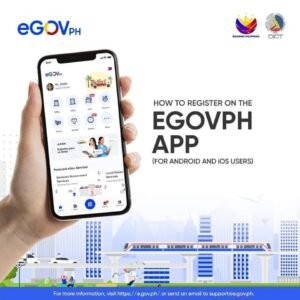
Welcome to the ultimate eGovPH App Guide. The eGovPH App is the Philippines’ official one-stop-shop application, allowing citizens to easily access crucial government services, verify their identity via the National ID, and utilize digital tools through a single, secure mobile platform.
Whether you need to view your digital National ID, access eTravel, or manage your government records, this comprehensive eGovPH App Guide will walk you through everything you need to know. Available on iOS and Android, this app is meticulously designed to streamline your interactions with national and local agencies.
🚀 How to Install and Register on the eGovPH App
Getting started is incredibly simple. Follow these easy steps to download the application and set up your highly secure account.
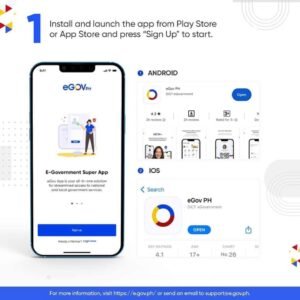
Download the App
Download the official “eGovPH” app directly from the Google Play Store or Apple App Store. Ensure you are downloading the official version published by the DICT.
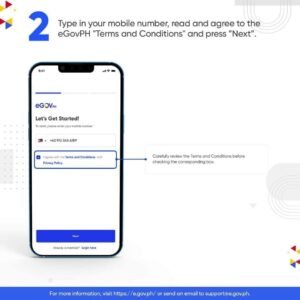
Open the app, enter your active mobile number, and input the 6-digit One-Time Password (OTP) sent to you via SMS.
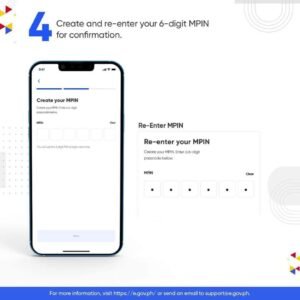
Set Your MPIN
Create and confirm a secure 6-digit MPIN. You will use this personal identification number every time you log in to protect your sensitive data.
Register Your Profile
Complete the registration form by entering your personal details accurately to successfully establish your digital profile.
📲 How to Verify Identity (Digital National ID)
One of the best features detailed in this eGovPH App Guide is the ability to bypass physical cards entirely.
Linking Your PhilSys National ID
The app allows you to link your Philippine National ID for high-level digital authentication. Follow the on-screen prompts to capture your face (liveness check) for biometric verification. Once successfully matched, the app will display your digital National ID.
If you face any issues during this face scan, please check our guide on resolving National ID problems. The digital version is fully valid and honored for transactions requiring proof of identity.
💡 Key Features of the eGovPH App
Once you are fully registered, you will unlock a suite of powerful tools designed to make your everyday transactions easier.
🏛️ Government Services
Access various national and local government services, from requesting documents to paying local LGU fees without waiting in long lines.
✈️ eTravel Registration
Easily register for travel requirements. The app integrates the Philippine eTravel system for seamless international departures and arrivals.
🪪 Digital ID Dashboard
Access your Digital National ID. This digital copy is legally valid under Republic Act No. 11055, possessing the exact same authority as the physical PhilID.
💼 eResume & Jobs
Create a digital resume and utilize built-in job matching features to connect with registered employers seamlessly nationwide.
🛡️ Account Security & Profile Management
Security is paramount when dealing with government documents. Our eGovPH App Guide strongly advises maintaining the following security habits:
- ✓ MPIN Security: Your 6-digit MPIN is used for secure logins. Never share it with anyone. Treat it with the same caution as your ATM PIN.
- ✓ Profile Management: You can easily update your personal info, like your backup email and mobile number, via the profile section. Keep this updated to ensure uninterrupted access to the web portal at e.gov.ph.
Frequently Asked Questions (People Also Ask)
How to verify national ID online?
To verify your National ID online, download the eGovPH app, register your account, and follow the biometric face-scan prompts to link and safely verify your PhilSys demographic data.
How to download national ID?
Once your identity is verified via the face-scan inside the app, your Digital National ID will be prominently displayed. You can view it directly on the dashboard or use the portal to download a printable PDF copy. See our full Download Guide for detailed steps.
How to create mPIN in eGovPH?
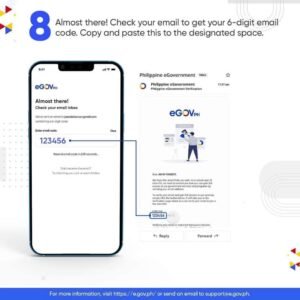
During the initial registration, immediately after you verify your mobile number via OTP, the application will prompt you to create and safely confirm a 6-digit MPIN.
Is a digital national ID valid?
Yes. The Digital National ID generated through the eGovPH app is perfectly valid and is explicitly mandated by law to be accepted by all public and private institutions as sufficient proof of identity.
People Also Search For
- eGovPH app download
- eGovPH online registration
- How to access Digital National ID
- eGov PH portal login
- Digital National ID valid