- What Is the Digital National ID (ePhilID)?
- Requirements Before You Start
- The Ultimate Step-by-Step Guide: How to Get Digital National ID
- How to Download Your ePhilID — National ID Copy
- How to Print Your National ID at Home
- How to Use the National ID Tracking QR Code
- How to Check Your National ID Status Online
- Special Guide: How to Apply for National ID as an OFW
- Frequently Asked Questions
If you are wondering how to get your Digital National ID in the Philippines, you are in the right place. Many Filipinos today want to know how to access their PhilSys eID, check their National ID status, and download their official digital copy online.
With the official PhilSys system and eGovPH services, it has become much easier to view, verify, and manage your National ID details using your phone. In this guide, you will learn the exact steps to get your Digital National ID, how to access your online record, and how to download or use your ePhilID safely and correctly.
What Is the Digital National ID (ePhilID)?
Requirements Before You Start
Complete Step-by-Step Guide
How to Download Your ePhilID
How to Print Your National ID at Home
How to Use the National ID Tracking QR Code
How to Check Your National ID Status Online
Special Guide for OFWs Abroad
Frequently Asked Questions
What Is the Digital National ID (ePhilID)?
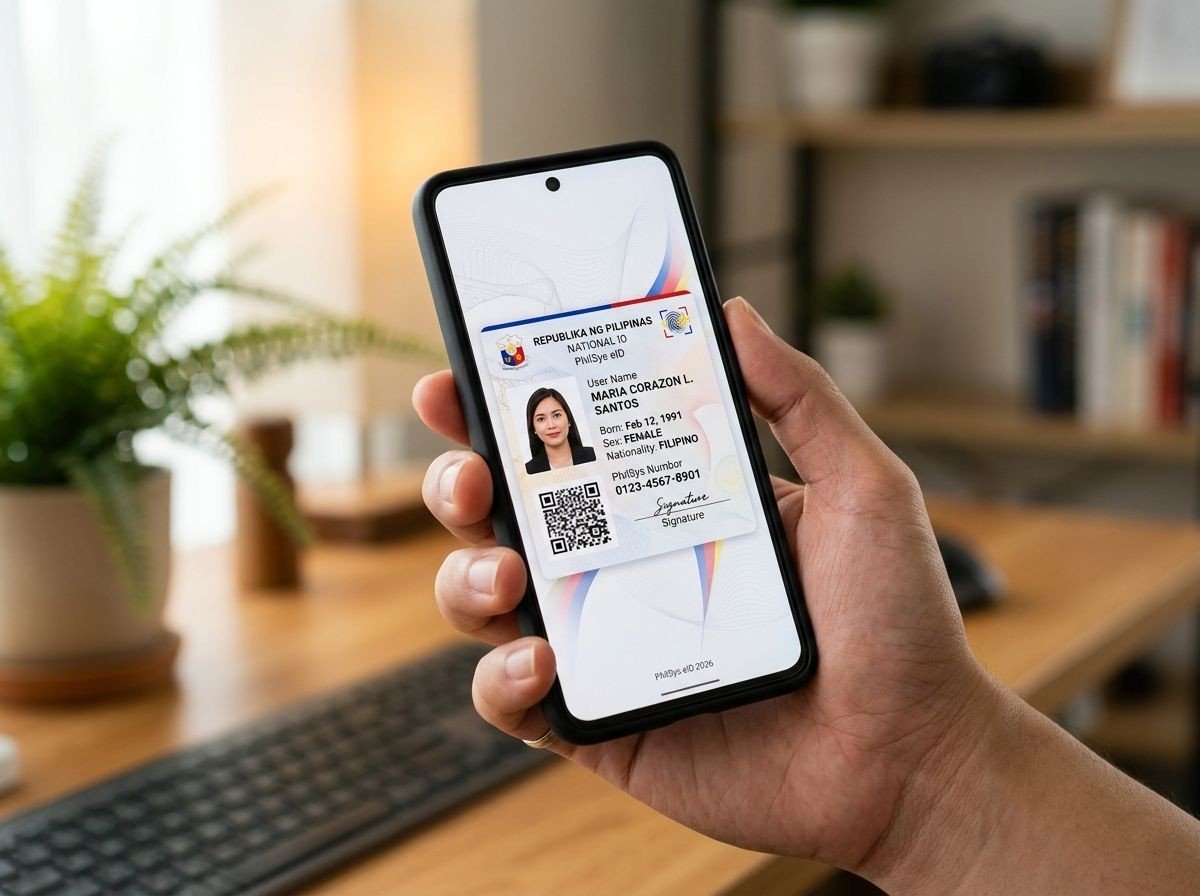
The digital national id, officially called the ePhilID, is the electronic version of the Philippine Identification System (PhilSys) card. It was introduced by the Philippine Statistics Authority (PSA) under Republic Act No. 11055, also known as the Philippine Identification System Act. This law guarantees that your digital copy is legally equal to the physical PVC card for all government and private transactions nationwide.
What makes the ePhilID powerful is its built-in QR code verification system. Banks, employers, government agencies, and private institutions can scan your QR code to instantly verify your identity without needing your physical card. In 2026, the PSA has significantly expanded the ePhilID rollout, making it available to over 70 million registered Filipinos through the eGovPH Super App.
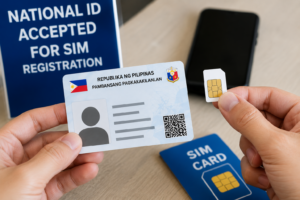
Under RA 11055, the printed ePhilID is accepted as a valid government-issued ID for opening bank accounts, passport applications, SIM registration, DSWD benefits, and more.
How to Get Digital National ID (PhilSys eID Guide 2026)
Requirements Before You Start
Before you can successfully learn how to get digital national id online, you must have already completed your in-person PhilSys registration. Here is what you need ready:
- Transaction Reference Number (TRN) — This was printed on the slip given to you when you completed your biometrics at the PSA registration center.
- Registered Mobile Number — The same phone number you provided during registration.
- A Smartphone or Laptop — You can access your digital ID via the eGovPH app (iOS and Android) or via a web browser on your laptop.
- Stable Internet Connection — Required for the facial verification step.
If you haven’t done your biometrics yet, you must first complete the in-person registration at a PSA center. Read our complete National ID Application Guide before proceeding.
The Ultimate Step-by-Step Guide: How to Get Digital National ID
Follow these proven, verified steps to claim your eGov digital national id today. This process typically takes under 5 minutes once you are registered.
Step 1 — Download the Official eGovPH Application
The fastest and most secure way on how to get digital national id is through the official eGovPH Super App. Search for “eGovPH” on the Google Play Store or the Apple App Store. Always verify the developer is the Department of Information and Communications Technology (DICT) to avoid downloading fake apps.
Step 2 — Register and Verify Your Mobile Number
Open the app and tap “Register.” Enter the mobile number you used during your PSA registration. The system will send you a one-time password (OTP) to confirm your identity. After entering the OTP, create a 6-digit MPIN — this is your personal access code, so choose something you will remember but that others cannot easily guess.
Step 3 — Link Your PhilSys ID via Face Scan
This is the most critical step. The app will prompt you to perform a live facial recognition scan. Make sure you are in a well-lit area, remove glasses or hats, and keep your face within the on-screen guide. The AI system will compare your live image against the biometric photo captured by the PSA when you registered. If verification fails, try again in a brighter location or contact PSA support.
Step 4 — Access Your ePhilID
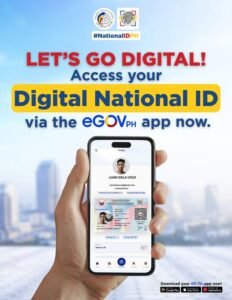
Once verification is successful, your digital national id will be permanently available inside the eGovPH app under the “My IDs” section. You can view it, download it as a PDF, and present it on your screen at any participating institution.
If you prefer not to use the mobile app, you can still get your national id copy through the web. Visit ephilid.philsys.gov.ph on your laptop browser and follow the same verification process. This is the official national id gov ph open now alternative portal.
How to Download Your ePhilID — National ID Copy
Many Filipinos ask how to actually save their national id copy to their device. Here is exactly how:
- Open the eGovPH app and go to “My IDs.”
- Tap your Philippine National ID card to open the full view.
- Tap the download/save icon (usually a downward arrow at the top right).
- The ePhilID will be saved as a PDF file to your phone’s storage.
- You can now email this file to yourself, store it in Google Drive, or print it anytime.
You can also save your ID as an image directly from the ePhilID portal. Check our dedicated article on how to download the digital National ID (ePhilID) for a full visual walkthrough with screenshots.
eGovPH App vs. Web Portal — Quick Comparison
| Feature | eGovPH App | Web Portal |
|---|---|---|
| Access Method | iOS / Android App | Any Browser |
| Download as PDF | ✅ Yes | ✅ Yes |
| QR Code Scanning | ✅ Built-in Scanner | ❌ Manual Only |
| Works Offline | ✅ Cached View | ❌ Requires Internet |
| Best For | Daily Transactions | Printing at Home |
How to Print Your National ID at Home
Understanding how to print national id correctly is important because improperly printed copies may be rejected by institutions. Follow these critical rules:
- Paper: Standard A4 or Letter-size paper is perfectly acceptable. You do not need special paper.
- Color: Color printing is preferred, but a clear black-and-white print is also legally valid.
- QR Code Integrity: The QR code on your ePhilID must remain completely intact and scannable. Do not fold the paper through the QR code area.
- Do Not Laminate: PSA explicitly advises against laminating your printed ePhilID as it may cause glare that prevents QR code scanning.
- Do Not Edit: Never alter or modify the PDF file in any way. Any changes make it legally invalid and may be considered forgery.
The official ePhilID PDF has two pages — the front showing your photo and details, and the back showing additional information and the QR code. Always print both sides on a single sheet for the most professional and complete copy.
How to Use the National ID Tracking QR Code
The national id tracking qr code is one of the most powerful features of the Philippine National ID system. Every ePhilID has a unique QR code that serves two purposes:
Purpose 1: Identity Verification
When you present your digital or printed ePhilID, institutions such as banks, GSIS, SSS, or LGU offices can scan the QR code using their official verifier app. This instantly confirms your name, PhilSys Number (PSN), and photograph — making identity fraud virtually impossible.
Purpose 2: Document Authenticity Check
The QR code links to a secure encrypted database. Any attempt to alter or photocopy the card will result in a failed scan, instantly flagging it as inauthentic. This makes your digital National ID significantly more secure than most traditional IDs.
How to Check Your National ID Status Online
If you completed your biometrics but haven’t received your physical card yet, you are likely wondering “how can i check my national id online?” The PSA provides an official tracking facility.
- Visit the official PHLPost tracking portal or the PSA tracking page.
- Enter your Transaction Reference Number (TRN) from your registration slip.
- The system will show you the current delivery status of your physical PVC card.
For a complete walkthrough with screenshots and solutions to “ID not found” errors, read our dedicated National ID Tracking Guide. Your digital copy remains available immediately via the eGovPH app while you wait for the physical card — so you don’t need to wait months to start using your ID.
Only use the official PSA and PHLPost websites to track your ID. Numerous fake third-party websites claim to offer “National ID tracking” and may steal your personal information. Always check that the URL begins with psa.gov.ph or phlpost.gov.ph.
Special Guide: How to Apply for National ID as an OFW
Overseas Filipino Workers (OFWs) have a dedicated registration pathway. You do not need to fly back to the Philippines just to get your National ID. Here is how it works:
- Visit Your Nearest Philippine Embassy or Consulate — The PSA has partnered with the DFA to set up PhilSys registration kiosks at select embassies in Saudi Arabia, UAE, Kuwait, Qatar, Japan, South Korea, and more.
- Pre-Register Online First — Fill out the online pre-registration form at register.philsys.gov.ph and bring your printed confirmation slip to your embassy appointment.
- Bring Your OFW Documents — A valid Philippine Passport plus your work permit or Overseas Employment Certificate (OEC) are typically accepted as primary identification.
- CFO Integration — If you depart through a CFO seminar, PSA representatives may also be present to facilitate on-the-spot registration.
Frequently Asked Questions
Download the eGovPH app from the Play Store or App Store. After verifying your identity via face scan, go to “My IDs” and tap the download icon on your Philippine National ID to save it as a PDF to your device. Alternatively, visit ephilid.philsys.gov.ph on a browser.
You can complete Step 1 (demographic data entry) online at register.philsys.gov.ph. However, Step 2 (biometric capture — fingerprints, iris scan, and photo) requires a physical appearance at a PSA registration center. The registration is completely free of charge.
The initial registration requires one visit to a PSA center for biometrics. However, once registered, everything else — downloading your digital copy, checking your tracking status, and presenting your ID for verification — can be done 100% online through the eGovPH app or the official web portal.
OFWs can register at designated Philippine Embassies or Consulates that offer PhilSys registration services. Pre-register online first at register.philsys.gov.ph and bring your Philippine Passport as the primary supporting document. Check your nearest embassy’s official Facebook page for scheduled registration dates.