How to Download Your Digital National ID via eGovPH App
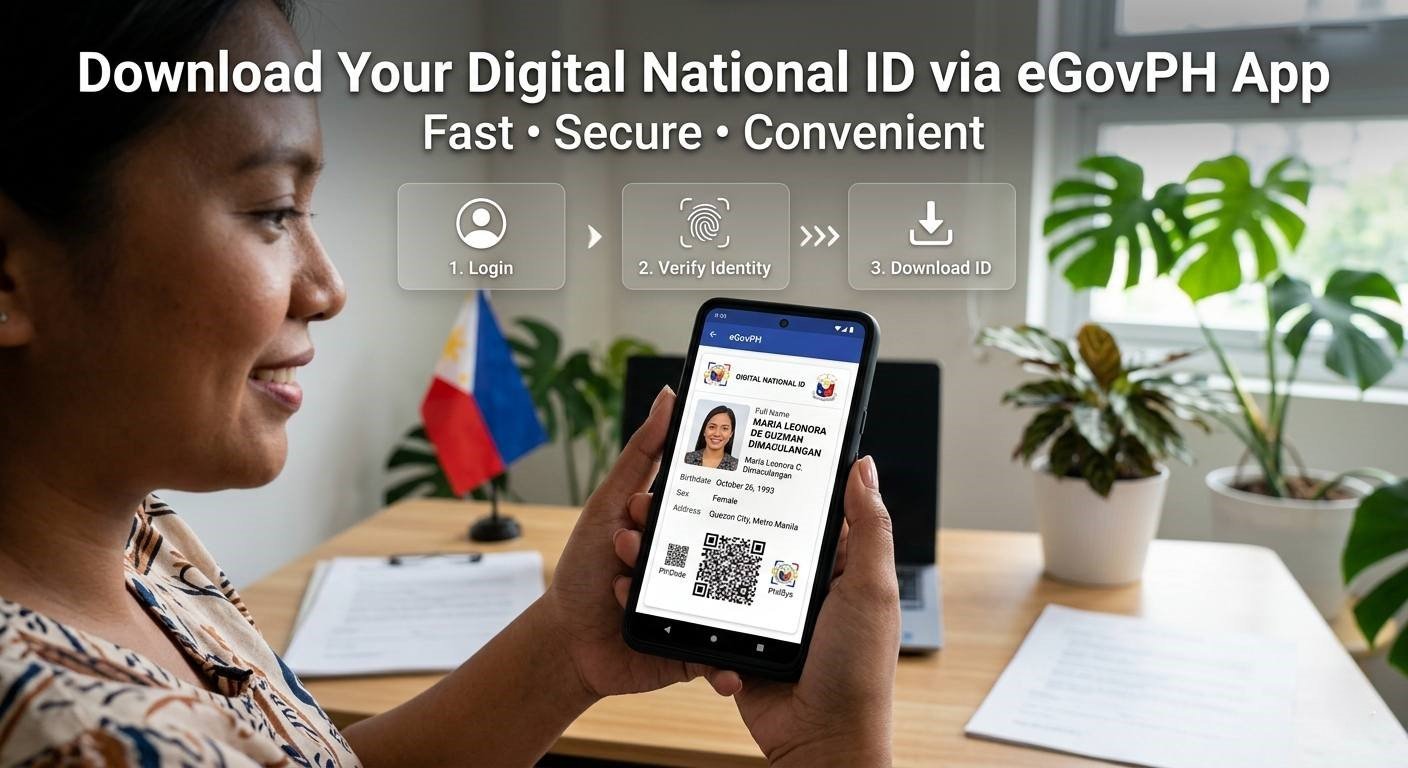
If you are looking to download national ID quickly, you no longer have to wait months or years for your physical card to arrive in the mail. Learn exactly how to get your Digital National ID via the eGovPH app in just a few minutes with our complete, easy-to-follow guide.
Whether you are trying to open a new bank account, verify an e-wallet like GCash or Maya, or complete essential government transactions, having your digital ID right on your smartphone is incredibly convenient. In this comprehensive guide, we will walk you through the entire process — from initial e gov ph registration to full egov ph national id verification — so you can easily find and download your National ID online without any hassle.
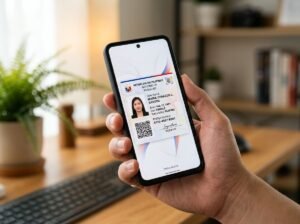
The Digital National ID is an official, legitimate digital alternative to the physical PhilSys ID card. According to the Philippine Statistics Authority (PSA), it holds the exact same validity and must be accepted for all public and private transactions across the country. It is displayed through the official eGovPH app and is backed by your biometric registration record.
Why You Should Download National ID Today
Many Filipinos are frustrated by the delayed delivery of their physical ID cards. In 2026, printing backlogs at the Bangko Sentral ng Pilipinas (BSP) mean that waiting periods of 12 to 18 months or longer are still common. Choosing to download national ID digitally offers several immediate benefits:
- Instant Access: As soon as you complete the eGovPH app national ID verification, your digital card is ready to use — no waiting for a courier.
- Highly Secure: The app requires biometric authentication (like Face ID or fingerprint) and a 6-digit MPIN, making it significantly harder for identity thieves to misuse compared to a lost physical card.
- Widely Accepted: The digital version is legally recognized under Republic Act No. 11055 for banking, government transactions, and obtaining other IDs. Check our guide on National ID vs UMID to see how it compares.
- Always Available: Your smartphone is almost always with you, meaning you will never leave your ID at home again.
- No Replacement Fee Risk: You cannot lose a digital ID the way you can lose a physical card. No affidavit of loss required.
Digital National ID vs ePhilID vs Physical PVC Card: Which Should You Use?
Many Filipinos are confused about the differences between the three forms of the PhilSys ID. Here is a clear comparison to help you decide.
| Feature | Digital National ID (eGovPH App) |
ePhilID (Printed Paper) |
Physical PVC Card (Mailed Card) |
|---|---|---|---|
| Availability | Immediate (after KYC) | Walk-in at registration center | 12–18+ months after registration |
| Legal Validity | ✅ Full legal validity | ✅ Full legal validity | ✅ Full legal validity |
| Cost | Free | Free | Free (replacement requires fee) |
| Security | Biometric + MPIN protected | Laminated, can be lost | Chip-enabled, can be lost |
| Requires Internet | To load; can display offline after | No | No |
| Best For | Daily use, banking, e-wallets | Physical forms, in-person visits | Long-term official records |
Requirements to Download National ID Online
Before you attempt to download national ID, ensure you have the following ready to ensure a smooth, error-free process:
- Completed PhilSys Registration: You must have already finished both your Step 1 (demographic data) and Step 2 (biometric capture) registration at an official center or mall kiosk.
- A Compatible Smartphone: An Android (version 8.0+) or iOS (version 14+) device with a working front-facing camera and an active internet connection.
- Active Mobile Number or Email: The mobile number or email should ideally match what you registered with PhilSys to avoid verification mismatches.
- Valid Government ID (for KYC): Any valid government-issued ID such as a Passport, Driver’s License, Postal ID, UMID, PRC ID, or SSS ID for the Know Your Customer identity verification process within the app.
- Sufficient Storage Space: Ensure your device has at least 150MB of free storage for the app and your downloaded ID file.
7 Easy Steps to Download National ID (eGovPH App)
Follow these 7 precise steps to get your digital national ID successfully. The egovph app national id integration makes this a seamless experience for every Filipino.
Step 1: Download the Official eGovPH App
First, install the official eGovPH app on your mobile device. To keep your data secure, only download it from official app stores. Find it on the Google Play Store for Android users or the Apple App Store for iOS users. Never download APK files from third-party websites — they may be modified and contain malware.
Step 2: Start the e Gov PH Registration
Open the app to begin the e gov ph registration process. Tap the “Sign Up” button on the welcome screen. You will be prompted to enter an active mobile number and a valid email address. Make sure both are accessible because a One-Time Password (OTP) will be sent to verify your contact information. The OTP expires within a few minutes, so check your messages promptly.
Step 3: Complete the e Gov PH Login Setup
Once your OTP is verified, you will be directed to create a secure 6-digit MPIN. This PIN will be required every time you perform an e gov ph login or access sensitive documents within the app. Choose a PIN that is not easily guessable (avoid 123456 or your birthdate). Enable biometric login (fingerprint or Face ID) for faster and even more secure access.
Step 4: Begin eGov PH National ID Verification (KYC)
To access sensitive government documents and download national ID, you must complete the egov ph national id verification (Know Your Customer or KYC) process. On the app’s main dashboard, you will see a verification banner or prompt. Tap on it to start. This step links your eGovPH account to your actual PhilSys registration record.
Step 5: Scan a Valid Government ID and Take a Selfie
Fill in your basic personal information exactly as it appears on your official PhilSys registration documents. The app will then prompt you to:
- Scan or photograph the front of your chosen government ID clearly.
- Take a live selfie (liveness detection check) to match your face against the photo on the ID you submitted.
Step 6: Wait for Verification Confirmation
After submitting your ID scan and selfie, the app will process your KYC request. This typically completes within a few minutes but can take up to 24 hours depending on server load. You will receive a push notification or email once your account has been successfully verified. Do not close or uninstall the app during this process.
Step 7: Access and Download Your National ID
Once verified, return to the main dashboard of the app. Look for the National ID tile or icon in the app’s digital wallet or services section. Tap it to securely access your PhilSys record. Your Digital National ID will display your:
- Full legal name
- Official face photo
- PhilSys Card Number (PCN)
- Scannable QR code
- Date of birth and address
To save an offline copy, tap the download or share icon to export a PDF version directly to your device storage. You can also take a screenshot for quick access. Your digital ID is now ready to present at banks, government offices, or any institution requiring a valid ID.
Troubleshooting: Can’t Download National ID?
If you encounter issues during the process, here is a structured guide to the most common problems and their solutions.
| Error / Problem | Likely Cause | What to Do |
|---|---|---|
| “Record Not Found” | Your PSA record is still being processed | Wait 2–4 weeks and try again. Consider claiming a printed ePhilID in the meantime. |
| KYC Verification Failed | Blurry selfie, glare on ID, or name mismatch | Retry in better lighting with a clear, unlaminated ID. Ensure the name on your ID matches your PhilSys registration exactly. |
| OTP Not Received | Wrong number, no signal, or network delay | Check your mobile signal. Wait 60 seconds before requesting a resend. Try using your email OTP instead. |
| App Crashes or Freezes | Outdated app or OS version | Update the eGovPH app from the official store. Update your phone’s operating system. Clear the app cache and try again. |
| National ID Tile Not Visible | KYC not yet fully approved | Check your email for a verification completion notice. If more than 24 hours have passed, contact eGovPH support. |
| Wrong Information Displayed | Data error from original PhilSys registration | Visit a PhilSys registration center with your PSA Birth Certificate to request a demographic data correction. |
Frequently Asked Questions (FAQs)
How do I download a digital National ID?
To get your digital National ID, download the eGovPH app from the official App Store or Google Play Store. Complete the registration and KYC verification process, and tap the National ID icon on your dashboard to view and save your digital ID to your device.
How do I download my plastic National ID card?
You cannot physically “download” the plastic PVC card. It is printed by the BSP and mailed to your registered address via PHLPost. If you are still waiting, you can download the digital version via the eGovPH app or generate and print your ePhilID from the official PhilSys portal as a fully valid substitute.
Can you apply for a Philippine National ID online?
You can begin the Step 1 demographic pre-registration online via the official PhilSys portal. However, you must still visit a physical PhilSys registration center or mall kiosk to capture your biometrics — fingerprints, iris scan, and photograph.
Can I do my National ID card entirely online?
While the full registration requires an in-person visit for biometric capturing, you can track your ID status, download the digital version via the eGovPH app, or generate a printable ePhilID entirely online from your home once registration is complete.
Is the Digital National ID on the eGovPH app accepted by banks?
Yes. Under Republic Act No. 11055 and BSP Circular No. 1108, all banks and financial institutions in the Philippines are legally required to accept the Digital National ID displayed on the eGovPH app as a valid, primary form of identification. Refusing it is a violation subject to penalties.
What if my eGovPH account is linked to the wrong PhilSys record?
If the information displayed in your Digital National ID does not match your actual details, do not attempt to create multiple accounts. Instead, contact the eGovPH support team through the app’s help center or reach the PhilSys hotline at 1388 to request a record reconciliation.
Can I use the Digital National ID for travel within the Philippines?
Yes. The Digital National ID on the eGovPH app is accepted as a valid government-issued ID for domestic airline check-ins, bus terminals, seaports, and hotel check-ins, as these establishments are required by law to accept it. However, it cannot replace a physical passport for international travel.


[…] Online First — Fill out the online pre-registration form at register.philsys.gov.ph and bring your printed confirmation slip to your embassy […]
[…] PSA office to inquire about your batch status. In the meantime, download your ePhilID or use the eGovPH Digital ID as a fully valid […]