- Table of Contents
- Is the National ID Accepted by the Maya App?
- Step-by-Step Maya Verification with National ID
- Can You Use the ePhilID (Digital National ID) for Maya?
- Basic vs. Fully Upgraded Maya Account: What's the Difference?
- What to Do if Maya Rejects Your National ID
- Managing Your Maya Profile (Delete Account, Download APK, Register SIM)
- Frequently Asked Questions (FAQ)
Completing your national id for maya verification is the fastest way to upgrade your digital wallet and unlock higher transaction limits, Maya Savings, and other financial features. As one of the most widely held identification cards in the country, the Philippine National ID (PhilSys ID) is fully accepted by the Maya app as a primary document for account upgrades.
In this guide, we will walk you through the entire verification process, explain how to verify Maya using a National ID (including the digital ePhilID), and troubleshoot common issues like upload failures, name mismatches, or maintenance issues. Whether you are creating a new Maya account or upgrading an existing one, here is everything you need to know about national id for maya verification in 2026.
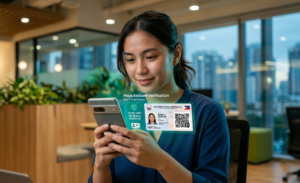
Philippine national id for maya verification and account upgrade
Table of Contents
- Is the National ID Accepted by the Maya App?
- Step-by-Step Maya Verification with National ID
- Can You Use the ePhilID (Digital National ID) for Maya?
- Basic vs. Fully Upgraded Maya Account: What’s the Difference?
- What to Do if Maya Rejects Your National ID
- Managing Your Maya Profile (Delete Account, Download APK, Register SIM)
- Frequently Asked Questions (FAQ)
Is the National ID Accepted by the Maya App?
Yes. The Philippine National ID (PhilSys ID) is a primary national id accepted by maya app. Under the rules set by the Bangko Sentral ng Pilipinas (BSP) and the PhilSys Act (Republic Act 11055), all financial institutions in the Philippines are required to accept the PhilSys ID as a valid, sufficient proof of identity without requiring secondary cards.
When upgrading your paymaya profile (now known as your Maya profile), you do not need to present additional documents if you use your PhilSys card. However, the details on your ID must match your registration details exactly. If you also need to use your National ID for other official transactions, you can check our guides on using the national id for bank account opening or applying for a passport using your national id for passport application.
Step-by-Step Maya Verification with National ID
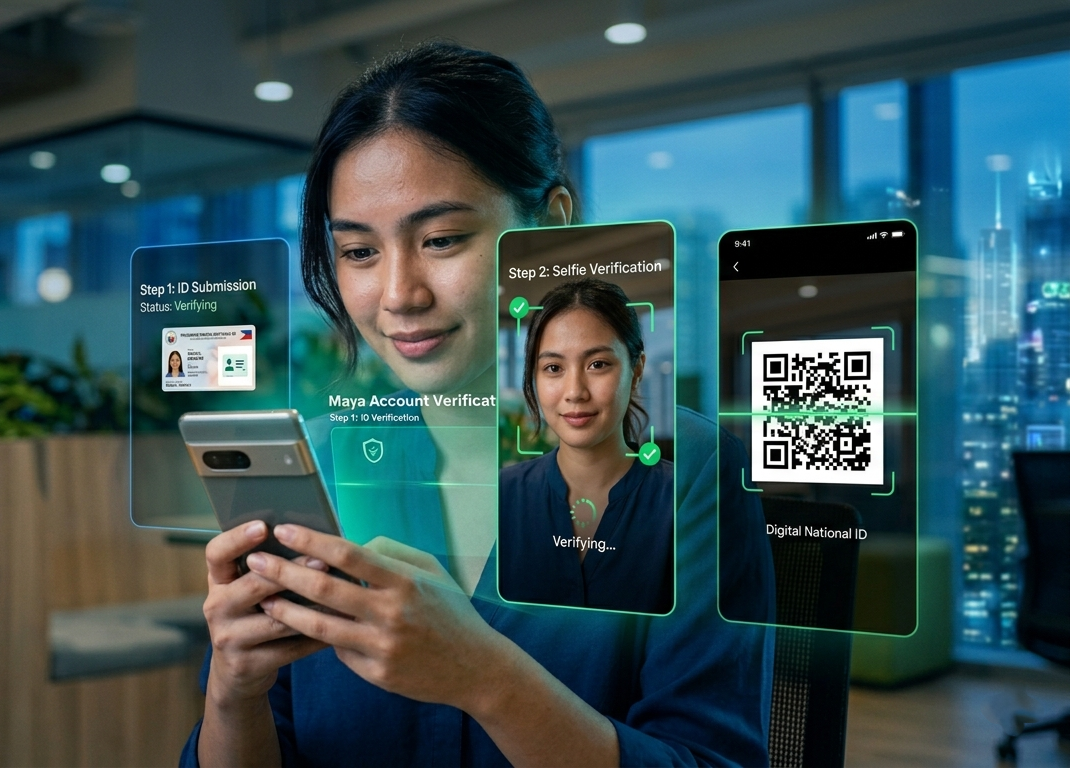
Here is how to complete your maya id verification 2026 using the official application. Before starting, make sure your physical PhilSys ID is with you, that you are in a well-lit room, and that you have checked if there is any maya update today or paymaya update today on the Google Play Store or Apple App Store to avoid app crashes.
- Launch the Maya App: Open the app on your mobile device. If you are experiencing installation issues or cannot access the store, ensure you only use official sources and do not install an unverified maya app download apk from third-party sites, as these pose severe security risks to your funds.
- Access Your Profile: Tap your profile icon or the menu button in the top-left corner of the screen. Select “Upgrade Your Account” or “Verify Now” to begin.
- Input Personal Details: Enter your full name, date of birth, and middle name. Note: These must perfectly match the details on your National ID down to the letter and spelling.
- Select Your ID Type: From the list of acceptable primary documents, select “Philippine National ID / PhilSys Card” or “Philippine National Identity Card”.
- Capture Your ID Photos: The app will prompt you to take a clear, well-lit photo of the front and back of your physical card. Ensure all four corners are visible, there are no glares or reflections on the laminate, and all text remains legible.
- Record a Video Selfie: Position your face within the on-screen oval frame. Follow the real-time instructions (such as nodding, blinking, or turning your head) to complete the liveness check.
- Review and Submit: Double-check the scanned fields that the app auto-populates from your ID. Correct any OCR (Optical Character Recognition) spelling errors, then submit your request.
Once submitted, Maya typically processes account upgrades within a few minutes to a few business hours. You will receive an SMS and an in-app notification confirming your upgraded status.
Can You Use the ePhilID (Digital National ID) for Maya?
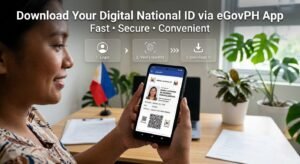
Yes. Maya accepts the printed ePhilID (the paper version of the National ID) as well as the digital version obtained from the official eGovPH app or the PhilSys portal. If you only have the paper version or the digital copy, here is how to verify maya using national id in digital format:
- For Printed ePhilID: Place the printed paper flat on a dark background in a well-lit room. Take a photo of the front page and the back page showing the QR code. Ensure the QR code is not folded or blurred, as Maya’s system needs to scan it.
- For Digital ID (eGovPH / PhilSys portal): You can take a screenshot of your digital National ID from the eGovPH app. Since you cannot upload photos directly from your gallery in some versions of the Maya app, you may need to display the digital ID on another screen (like a tablet or computer) and use your phone’s camera to capture it, or print the digital PDF file.
If you do not have your digital ID yet, you can follow our guide on how to download ePhilID to retrieve your credentials from the PSA database.
Basic vs. Fully Upgraded Maya Account: What’s the Difference?
Upgrading your Maya account is highly recommended if you plan to use it as your primary digital wallet. Basic accounts face strict limitations designed to prevent fraud. Below is a comparison of what you get before and after completing your national id for maya verification.
| Feature / Limit | Basic Account (Unverified) | Upgraded Account (Fully Verified) |
|---|---|---|
| Wallet Limit | Up to ₱40,000 | Up to ₱100,000 (increases to ₱500,000 with linked bank accounts) |
| Monthly Inflow | ₱40,000 maximum | ₱100,000 to ₱500,000 maximum |
| Send Money to Users | Disabled | Enabled (Free Maya-to-Maya transfers) |
| Bank Transfers (PESONet/InstaPay) | Disabled | Enabled (Transfer funds to BDO, BPI, UnionBank, etc.) |
| Cash Out / ATM Withdrawal | Disabled | Enabled (Using physical Maya card) |
| Maya Savings & Credit | No access | Access to high-interest savings (up to 14% p.a.) and credit lines |
What to Do if Maya Rejects Your National ID
If your upgrade request gets rejected, it is usually due to small details. Here are the most common reasons and how to bypass them:
1. Name or Birthday Mismatch
Your registration details on the Maya app must match your National ID exactly. If your ID says “Maria Jane Santos” but you registered as “Jane Santos,” the upgrade will be rejected. You can edit your registration details within the app before submitting the ID, or contact support if the fields are locked.
2. Poor Image Quality or Glare
Maya’s verification system uses automated tools to read the details on your card. If there is a reflection on your photo or if the background is messy, the OCR tool will fail. Place your ID on a dark, matte surface (like a black notebook or dark table) and avoid using direct camera flash.
3. System Under Maintenance
If the verification page does not load, you might need to perform a paymaya maintenance check online. Check Maya’s official Facebook and Twitter accounts to see if there is an active service outage. If there is a scheduled maintenance, wait a few hours and try again.
4. Outdated App Version
Always verify if there is a maya update today in your app store. Using an outdated version of the app can cause issues with the biometrics scan or connection errors during submission.
Managing Your Maya Profile (Delete Account, Download APK, Register SIM)
Using Maya successfully also requires managing your profile securely. Here are a few essential tips for keeping your digital wallet safe:
- How to Register SIM for Maya: Under the SIM Registration Act, you must register sim maya is connected to. If your SIM is unregistered, it could be deactivated by your telecom provider, causing you to lose access to your Maya account and funds. Always register your mobile number with Smart, Globe, or DITO.
- How to Delete Maya Account: If you no longer wish to use your account, you cannot simply uninstall the app. To learn how to delete maya account permanently, you must empty your wallet balance, settle any outstanding Maya Credit, and contact Maya Customer Support (via support@maya.ph or dial *788 on your phone) to request account termination and data deletion.
- Keep Your Profile Secure: Regularly review your paymaya profile settings. Never share your One-Time PIN (OTP) or password with anyone, including individuals claiming to be Maya representatives.
Frequently Asked Questions (FAQ)
Is the National ID accepted by the Maya app for account verification?
Yes. The Philippine National ID (PhilSys ID) is fully accepted by the Maya app as a primary valid ID for verification and account upgrades. You can submit the physical card, a printed copy of your ePhilID, or a digital copy from the eGovPH app.
How do I verify my Maya account using my National ID?
To complete your national id for maya verification, go to your Profile in the Maya app, select “Upgrade Your Account,” choose the Philippine National ID as your ID type, take photos of the front and back of the card, and complete the video liveness scan.
Can I use my digital ePhilID to upgrade my Maya account?
Yes. You can use the printed ePhilID (on A4 paper) or the digital copy from the eGovPH app to upgrade your Maya account. Make sure the QR code is completely clear and scannable when you capture it in the app.
Why is my Maya account upgrade using National ID rejected?
Upgrades are typically rejected due to blurry ID photos, name mismatches between your app profile and the ID card, or glare on the card. Ensure you are using the latest version of the app by checking for a maya update today before trying again.
Where can I safely download the Maya app?
Always download the Maya app from the Google Play Store, Apple App Store, or Huawei AppGallery. Never search for a maya app download apk on random websites, as modified APKs can steal your login credentials and empty your wallet.