📑 Table of Contents
▾
✅
Quick answer
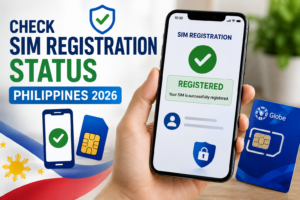
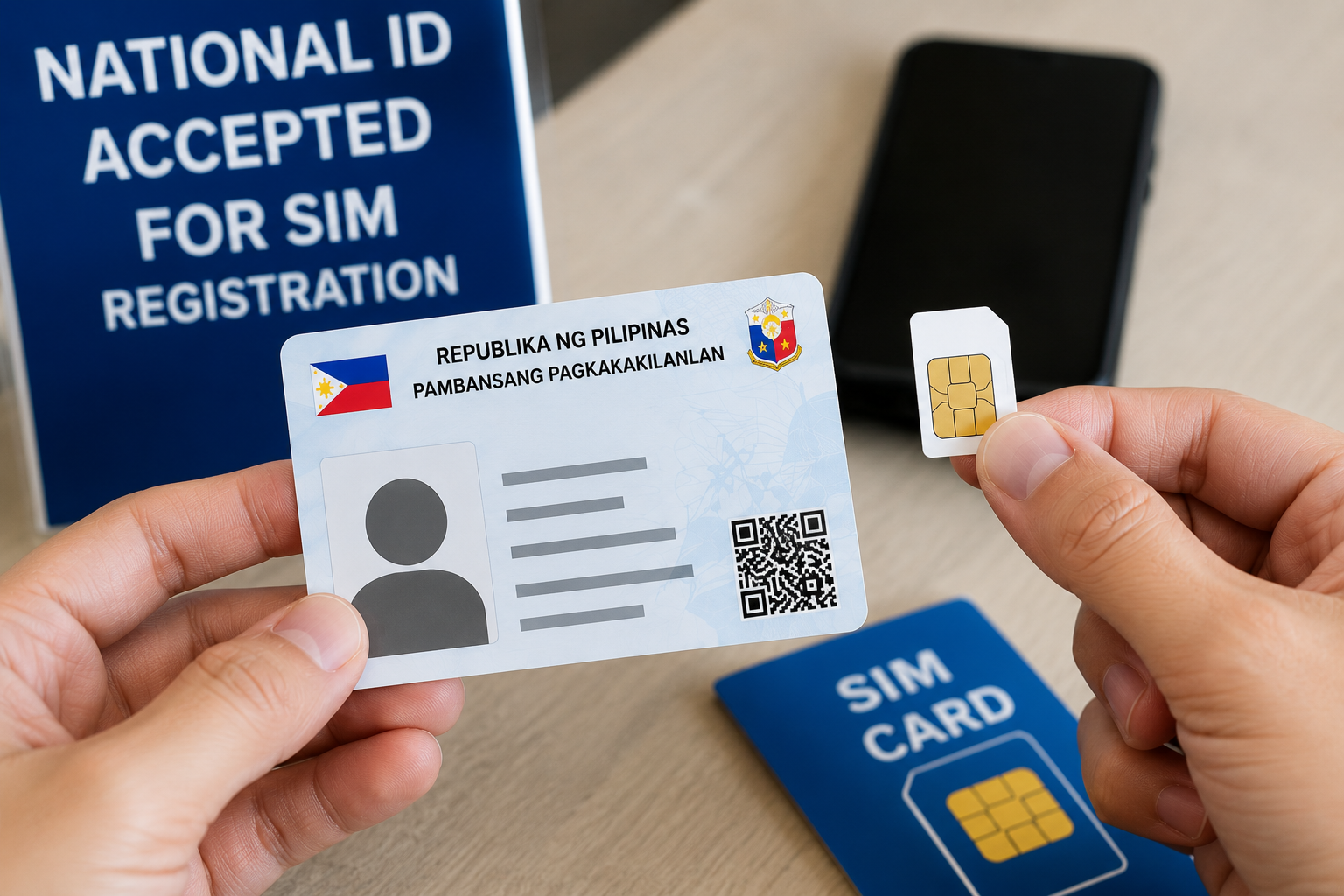
Your PhilSys National ID is accepted for SIM registration at all major Philippine telcos — Globe, Smart, TNT, and DITO — both over the counter and via online portals. The ePhilID (digital version) is also accepted where ID uploads are supported. The National ID is one of 16 officially recognized IDs for this purpose, not the only one — see our full SIM registration requirements guide if your ID situation is different.
Globe SIM Registration with National ID
At a Globe Store or Retailer
- Present your National ID to the counter staff. They’ll verify your name, date of birth, and address against their system.
- Staff will either scan the QR code on your card or manually enter your details. If they scan it, the form pre-fills automatically.
- Confirm your details on the screen and sign or acknowledge the registration form.
- You’ll receive an SMS confirmation that your SIM is now registered.
Via the Globe Website or App
- Go to globe.com.ph/simreg or open the GlobeOne app and find the SIM registration option.
- Enter your SIM card number (ICCID) found on the SIM tray or packaging.
- When prompted for an ID type, select National ID (PhilSys) from the dropdown.
- Upload a clear photo of the front of your National ID. If using ePhilID, upload the PDF page showing your photo, name, and QR code.
- Fill in any remaining fields and submit. Approval typically arrives via SMS within a few minutes to a few hours.
Smart and TNT SIM Registration with National ID
At a Smart / TNT Store or Retailer
- Present your National ID to the store staff — Smart and TNT registration processes are essentially identical at the counter.
- Staff will enter or scan your details. The QR code on your National ID, if it scans successfully, speeds this up considerably.
- Review your information on the terminal and confirm.
- You’ll get an SMS confirmation once registered.
Via the Smart Website or GigaLife App
- Visit smart.com.ph/simreg or open the GigaLife app.
- Enter your SIM card’s ICCID number.
- Select National ID as your ID type from the list.
- Upload a photo of your National ID front, or the relevant page of your ePhilID PDF.
- Submit and wait for the confirmation SMS.
📱
DITO Telecommunity
DITO also accepts the National ID for SIM registration through their app and store counters, following the same steps: select National ID as the ID type, upload a clear front-side photo, and confirm your details. Worth noting: DITO’s overall accepted-ID list is broader than some other telcos — see our requirements guide for the full comparison if you’re weighing which ID to bring.
Online SIM Registration Using Your ePhilID
If your physical National ID card hasn’t arrived yet, your ePhilID (the digital version from the PhilSys or eGovPH platform) is accepted for online SIM registration at Globe, Smart, and TNT.- Open your ePhilID PDF and take a screenshot or save the page showing your photo, full name, date of birth, address, and QR code — all of these need to be clearly readable in your upload.
- When uploading, make sure the image isn’t cropped, blurred, or edited. Most portals run automated verification and will reject anything that looks altered.
- If the system asks for a “PhilSys Number” (PSN), you’ll find this on your ePhilID or in your registration confirmation message — it’s the long number that serves as your National ID number.
What If the System Can’t Read Your National ID QR Code
Counter staff occasionally run into QR scanning issues — a scratched card surface, a reader that’s miscalibrated, or a card that was printed with a slightly misaligned code. This is more common than it should be and isn’t your fault.- Ask the staff to enter your details manually instead of scanning. The QR code is a convenience feature, not a mandatory step — all the data on the front of the card is sufficient.
- If the online portal rejects your upload, try a higher-resolution photo in better lighting before assuming there’s a problem with the card itself.
- If you consistently have QR code issues across multiple attempts, your card may have a printing defect — see our PhilSys QR code troubleshooting guide for next steps, including how to request a card replacement.
Re-Registration: If Your SIM Was Already Deactivated
If your SIM was deactivated because it wasn’t registered before the deadline, or because your earlier registration attempt was rejected, you’ll need to get a new SIM from your network — deactivated SIMs cannot simply be re-registered on the same number in most cases.- Visit any Globe, Smart, TNT, or DITO store, get a new SIM on the same network, and go through SIM registration at the counter using your National ID.
- Your previous number is generally not recoverable after deactivation — this is a network policy, not something PSA or your National ID can override.
- If you want to keep a specific number, contact your telco’s customer care line before getting a new SIM to confirm whether number recovery is possible in your situation.
Frequently Asked Questions
Is the Philippine National ID accepted for SIM registration?
Yes. The PhilSys National ID (PhilID) is explicitly recognized as a valid ID under the SIM Registration Act (RA 11934) and is accepted by all major telcos including Globe, Smart, TNT, and DITO.Can I use ePhilID (digital National ID) for SIM registration?
Yes, for online registration where an ID upload is accepted. Make sure your ePhilID screenshot or PDF export clearly shows your photo, name, date of birth, address, and QR code.Do I need to show a physical National ID card, or does a screenshot work?
At store counters, you’ll generally need a physical card or printout of your ePhilID. For online registration, a clear digital photo or PDF of your ePhilID is usually accepted.What if my National ID number isn’t being accepted by the registration system?
Double-check you’re entering your PhilSys Number (PSN) — the long national ID number — not your TRN (transaction reference number from registration). If the system still won’t accept it, ask counter staff to enter details manually, or contact your telco’s support line.Can I use my National ID for multiple SIM cards?
Under RA 11934, each ID can be used to register SIMs — but telcos may impose their own limits on the number of SIMs per person per network. Check with your specific telco if you need multiple SIMs registered.My National ID is still processing — what can I use instead?
If you haven’t received your physical card yet, your ePhilID works for online SIM registration. For counter registration, any other valid government ID (passport, driver’s license, UMID, Voter’s ID) is also accepted — see our full list of accepted IDs for every option.Do I need to register again if I switch networks?
Yes — SIM registration is tied to the SIM card, not your identity account. Getting a new SIM (even on a number port to a new network) requires a fresh registration for that SIM.What if the QR code on my National ID isn’t scanning at the telco counter?
Ask the staff to enter your details manually — the QR scan is a time-saver, not a requirement. If you’re seeing consistent QR issues, see our QR code troubleshooting guide.
⚠️
Disclaimer
This is an independent guide not affiliated with the PSA, PhilSys, or any Philippine government agency. All information is based on publicly available official sources. Always verify with PSA.gov.ph or PhilSys.gov.ph before taking action.