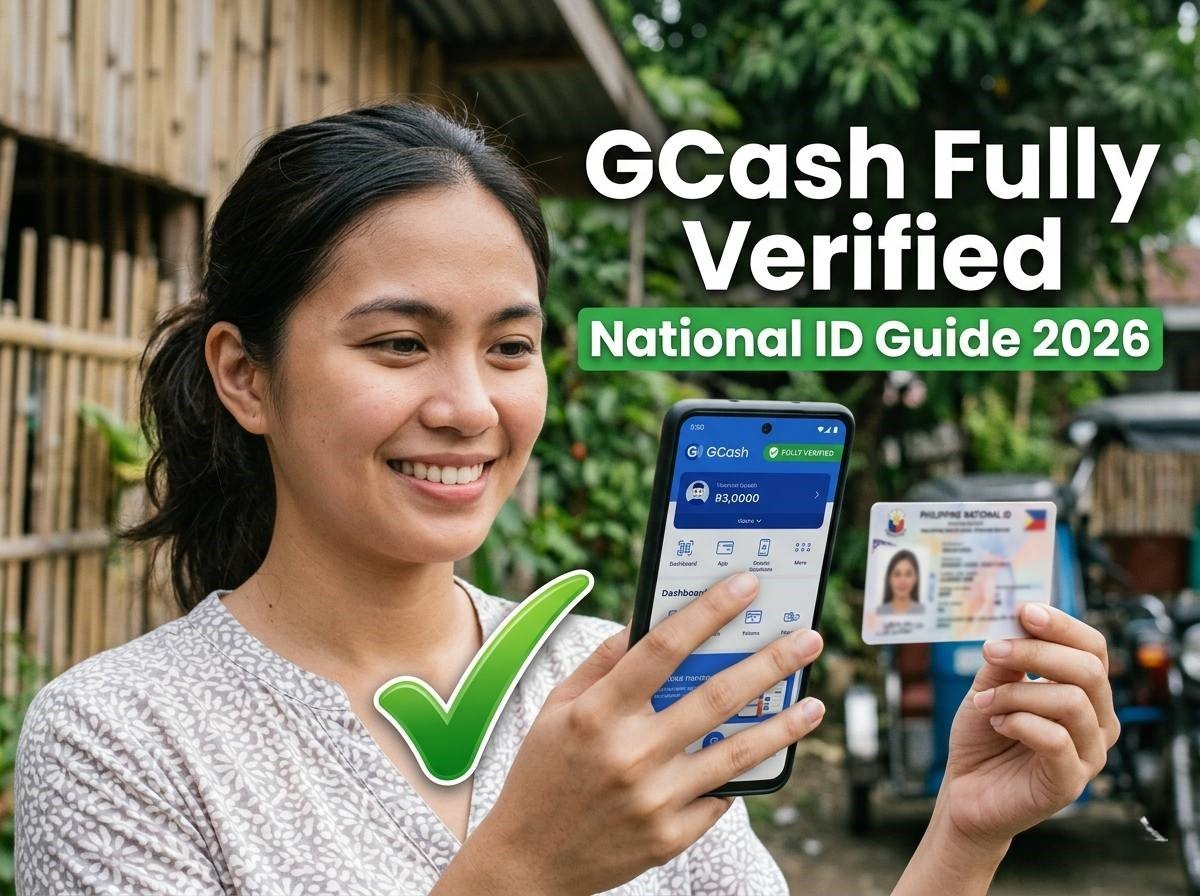
How to Use National ID for GCash Verification (2026 Guide)
Unlocking the full features of your e-wallet has never been easier. If you are looking to increase your wallet limits, send money to other banks, or invest, you need to know how to use national ID for GCash verification.
In 2026, the Philippine Identification System (PhilSys) ID has become the primary and most highly recommended valid ID for verifying mobile wallets. Whether you have the physical plastic card, the printed ePhilID, or you want to know how to verify GCash using digital national ID, this comprehensive guide will walk you through the entire process online.
Is the National ID Accepted in GCash? (All 3 Formats)
Yes! Many users ask, “can I use digital national ID for GCash verification?” The answer is a resounding yes. Here is how GCash handles the three different formats of the PhilSys ID:
- Physical National ID (Plastic Card): The standard ID. Highly readable by the GCash AI scanner.
- ePhilID (Printed Paper): You can use your printed ePhilID. Just ensure it is printed clearly, preferably in color, and not heavily crumpled or poorly laminated. If you haven’t got yours yet, read our guide on printing your ePhilID.
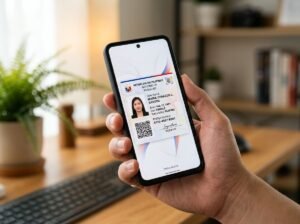
- Digital National ID: You can use the digital version accessed via the eGovPH app. You will need to take a screenshot or download it to upload the image file to GCash, or scan it from a secondary device. Learn how to download your digital ID here.
List of Valid ID for GCash Verification (2026)
While the PhilSys ID is the easiest to use, GCash accepts a variety of primary IDs. The official list of valid ID for GCash verification includes:
- Philippine National ID (PhilSys) / ePhilID
- UMID
- Driver’s License
- Philippine Passport
- Postal ID
- Voter’s ID
Step-by-Step: How to Use National ID for GCash Verification 2026 Guide Online
Follow these exact steps to fully verify your account and unlock your financial access:
Step 1: Prepare Your ID and Find Good Lighting
Before you open the app, ensure you are in a well-lit room. Natural sunlight works best. Have your physical PhilSys card, your printed ePhilID, or a clear copy of your digital ID ready.
Step 2: Log in to GCash and Start Verification
Open your GCash app and tap on the Profile tab at the bottom right corner. Under your name, tap on Verify Now or Get Fully Verified.
Step 3: Select “National ID”
You will be presented with the list of valid ID for GCash verification. Select Philippine Identification System (PhilSys) ID from the top of the list.
Step 4: Scan Your National ID
The app will open your camera. Align your National ID within the frame. Ensure that all the text (especially the PCN and your name) is perfectly legible and that there is no glare from room lights covering the QR code or your photo.
Step 5: Complete the Face Scan (Liveness Check)
After scanning the ID, the app will require a face scan to ensure the person holding the phone matches the ID picture. Position your face inside the oval frame, remove any masks, hats, or dark glasses, and blink or turn your head as instructed by the app.
Step 6: Submit and Wait for Approval
Fill in any remaining personal details requested (make sure they match the ID exactly) and tap submit. GCash’s automated system usually verifies National IDs within 5 to 10 minutes!
Troubleshooting: Why is GCash Not Accepting My ID?
If your verification failed, you aren’t alone. Here is how to fix the most common errors when using the national ID for GCash verification:
- Face Scan Errors: The most common issue. Ensure the lighting on your face matches the lighting on your ID photo. Stand against a plain white wall and avoid heavy shadows on your face.
- Blurry ID/Glare: The plastic coating on the physical National ID is very reflective. Tilt the card slightly to remove any glare from overhead lights so the AI can read your details.
- Name Mismatch: If the name on your GCash registration differs from your National ID (e.g., due to marriage or typos), the automatic system will reject it. You will need to submit a ticket to GCash Help Center to update your account name first.
Frequently Asked Questions (FAQs)
Can I verify my GCash with a National ID?
Yes, the Philippine National ID (PhilSys) is the primary and most recommended valid ID for upgrading your GCash account to “Fully Verified” status.
How to verify GCash account 2026?
To verify your GCash account in 2026, go to your Profile in the app, tap “Verify Now”, select a primary valid ID (like the National ID or Passport), scan the ID using your phone’s camera, and complete the live face scan. The process usually takes less than 10 minutes.
Can I use digital national ID for GCash verification?
Yes, GCash accepts the digital version of the National ID. You can scan the digital ID from another screen, or if the app allows file uploads, upload a clear screenshot of your digital ID from the eGovPH app.
How to verify GCash without ID 2026?
It is legally required by the BSP to have a valid ID to fully verify an e-wallet. You cannot verify GCash without any ID. If you lost yours, you can quickly download the Digital National ID via the eGovPH app and use that instead.
How to verify GCash using student ID 18 years old?
GCash only accepts student IDs for minors (17 years old and below). If you are 18 or older, your student ID is no longer accepted for GCash verification. You must apply for a primary government ID such as the PhilSys National ID, Postal ID, or Passport.
Why is GCash not accepting my ID?
GCash usually rejects IDs due to poor lighting, glare on the ID making text unreadable, blurry face scans, or mismatched names between the ID and the GCash account profile. Retake the photos in a well-lit area with a plain background.
What are my limits after verifying with National ID?
Once fully verified using your National ID, your wallet limit increases to PHP 100,000. You also gain the ability to send money, cash out, request money, and use GCredit and GSave features. If you link a bank account, your limit can increase to PHP 500,000.
Looking to upgrade your other e-wallets? Check out our complete guide on Maya Verification using your National ID to maximize your digital banking experience.
Leave a Reply