- What Is the National ID Digital Copy?
- Before You Begin: What You Need
- How to Download National ID Digital Copy: Step-by-Step 2026
- How to Print Your Digital National ID (ePhilID)
- Can I Get a Philippine National ID Online Without Going to PSA?
- Troubleshooting: Common Problems When Downloading Your Digital ID
- Frequently Asked Questions (FAQs)

Download National ID Digital Copy Step-by-Step 2026
Still waiting for your plastic card in the mail? You don’t have to. Millions of Filipinos are now using their download national ID digital copy for everything from bank account opening to e-wallet verification — and you can access yours in minutes.
This guide will walk you through exactly how to get your digital national ID using the official eGovPH app, how to save a copy to your phone, and answer the most common questions about the national id gov ph digital id system in 2026.
What Is the National ID Digital Copy?
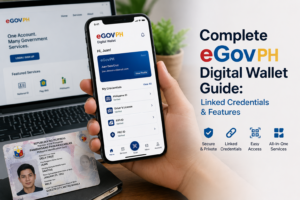
Your national id copy in digital form is the official electronic version of your Philippine Identification System (PhilSys) card. It is stored and accessed through the eGovPH super app, which is the Philippine government’s official digital platform available on both Android and iOS.
Think of it as your national id gov ph digital id — it displays all of the same information as your physical card, including your full name, date of birth, address, PCN (PhilSys Card Number), and a scannable QR code for real-time verification. You can check it anytime, show it on your screen, or save a copy directly to your device.
Before You Begin: What You Need
Before you can download your digital national ID, make sure you have the following ready:
- A smartphone (Android or iOS) with a stable internet connection
- Your registered mobile number (the one you used during PhilSys registration)
- Your Transaction Reference Number (TRN) — found on the acknowledgment slip you received after your PhilSys registration
- The eGovPH app installed on your phone (it’s free)
How to Download National ID Digital Copy: Step-by-Step 2026
The national id gov ph open now portal is fully integrated into the eGovPH app. Here is the complete process:
Step 1: Download and Install the eGovPH App
Open the Google Play Store (Android) or Apple App Store (iOS) and search for “eGovPH.” Download and install the official app published by the Department of Information and Communications Technology (DICT). This is your direct access point to your egov digital national id.
Step 2: Register or Log In to Your eGovPH Account
Open the app and tap Sign Up if you are a new user. Enter your mobile number, verify via OTP, and set a password. If you already have an account, simply log in. This is also the answer to the common question, “how can I check my national ID online” — the eGovPH app is your primary tool.
Step 3: Link Your PhilSys Account
Once inside the app, navigate to the PhilSys section or look for the National ID card on the home dashboard. Tap Link National ID. You will be asked to enter your registered mobile number or TRN. An OTP will be sent to verify your identity.
Step 4: Verify Your Identity with a Face Scan
The app will prompt a short liveness check (a face scan). This is a one-time security step to confirm you are the registered owner of the ID. Position your face within the oval frame, ensure good lighting, and follow the on-screen prompts (e.g., blink or turn your head slightly).
Step 5: Access Your Digital National ID
After successful verification, your digital national ID will appear on your screen. You will see your full ID card — front and back — complete with your photo, personal details, PCN, and QR code. This is your official national id copy that you can use immediately.
Step 6: Save or Download the Digital Copy to Your Phone
To get a permanent national id digital copy download on your device:
- Screenshot Method: Take a screenshot of both the front and back of your digital ID and save it to your phone’s gallery.
- Download as PDF: Some versions of the eGovPH app include a share or download option. Tap the Share / Download icon and choose to save it. This gives you a national id digital copy download pdf saved directly to your phone’s files folder.
- National ID digital copy link: You can also find a shareable link or QR code within the app that allows institutions to verify your ID digitally in real-time without needing an image file.
How to Print Your Digital National ID (ePhilID)
Many users want to know how to download and print digital National ID for use in situations where a physical document is preferred. Here is how:
- Follow the steps above to access and download the PDF version of your digital ID.
- Transfer the PDF to a computer or send it via email.
- Open the PDF and print it on A4 paper. Use a color printer for the best result.
- This printed copy is called the ePhilID and is a valid government ID. Do not laminate it with thick plastic, as this may obscure the QR code and make it unreadable.
The printed ePhilID on paper is accepted the same way as the plastic card, including for GCash verification, bank account opening, and government transactions. For more on this, read our full guide on how to print your ePhilID.
Can I Get a Philippine National ID Online Without Going to PSA?
This is one of the most common questions: “Can you get a Philippine National ID online?” The short answer is: No, you still need to register in person at a PhilSys registration center (usually at PSA offices, LGUs, or partner sites). Your biometrics — fingerprints, iris scan, and photo — must be captured physically.
However, once registered, the digital version of your ID is entirely accessible online through the eGovPH app. So while you cannot apply for your ID card online for the first time, you can absolutely access, download, and use your national ID online after registration — which is what most people searching for “can I do my National ID card online” actually need.
Troubleshooting: Common Problems When Downloading Your Digital ID
Here are solutions to the most frequent issues users encounter:
- “My National ID is not showing in the eGovPH app.” Your registration may not have been fully processed yet. Go to nationalid.gov.ph to check your status. If your card is listed as “For Delivery,” your digital copy should be available. Try unlinking and re-linking your account in the app.
- “The face scan keeps failing.” Ensure you are in a well-lit room, remove glasses, and position your face directly in front of the camera. Avoid strong backlighting (e.g., sitting in front of a window).
- “I forgot my eGovPH password.” Tap “Forgot Password” on the login screen and reset it via your registered mobile number and OTP.
- “There is no download button in my app.” Make sure your eGovPH app is updated to the latest version. If the download PDF option is not available, use the screenshot method as a reliable alternative.
- “The national id gov ph open now page won’t load.” This is usually a server-side issue during peak hours. Try again later or use the eGovPH app directly instead of the web portal.
Frequently Asked Questions (FAQs)
How to download and print digital National ID?
Access your digital National ID through the eGovPH app by linking your PhilSys account and completing the face scan. Once your ID appears, use the app’s download/share option to save it as a PDF, or take a screenshot. Transfer the file to a computer and print it on A4 paper using a color printer. This printed copy is the official ePhilID and is a valid government ID.
Can you get a Philippine National ID online?
You cannot complete your initial PhilSys registration entirely online — in-person biometric capture is required. However, once you are registered, you can fully access, download, and use your national id digital copy online via the eGovPH app without needing your physical card.
Can I do my National ID card online?
The registration appointment can be scheduled online through the PSA website, but the actual registration (photo, fingerprint, and iris scan) must be done in person. After that, everything — from checking your status to downloading your digital ID — can be done completely online.
Can I apply my ID card online?
Not from start to finish. You can book your registration slot online, but you must visit a PhilSys registration center in person for biometric capture. There is no fully online application process for the Philippine National ID at this time.
How can I check my national ID online?
You can check your National ID status online at the official PSA PhilSys portal (nationalid.gov.ph). Enter your TRN (Transaction Reference Number) or registered mobile number to see if your card is being processed, printed, or delivered. Once activated, you can view and download your digital ID via the eGovPH app.
What is the national id digital copy link?
Inside the eGovPH app, your digital National ID includes a QR code that acts as a verifiable national id digital copy link. When scanned by an authorized party, it connects to the official PhilSys database to confirm your identity in real time — a more secure alternative to presenting a static image.
Is the eGov digital national ID the same as the plastic card?
Yes. The egov digital national id contains exactly the same information as your physical PhilSys card: your PCN, full name, date of birth, address, and biometric-linked QR code. It carries the same legal weight for most transactions in the Philippines.
What if I never received my physical National ID?
If your physical card is still in transit or was not delivered, you can use your digital national ID immediately via the eGovPH app. You can also print the ePhilID (the PDF version) for use as a physical document while waiting. Check your delivery status at the PSA portal or your local post office.
Already have your digital ID? Put it to work right away — read our guide on how to use your National ID for GCash verification and unlock your full wallet limits today.