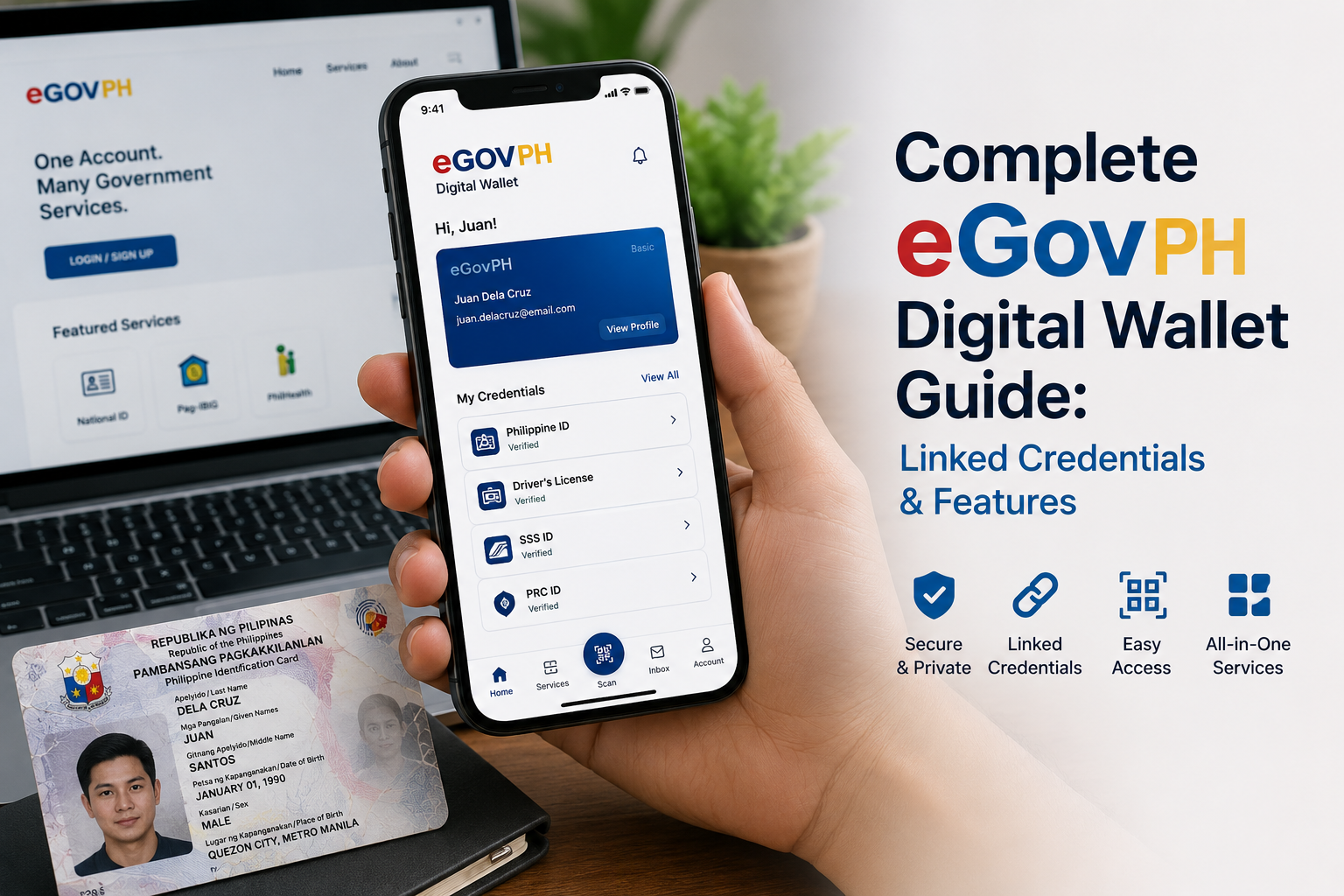
Complete eGovPH Digital Wallet Guide
📱 eGovPH Digital Wallet — store your National ID and other government credentials securely
In this guide
What Is the eGovPH Digital Wallet?
The eGovPH digital wallet is a feature within the eGovPH mobile application — the official one-stop platform developed by the Department of Information and Communications Technology (DICT) for Philippine government services. The wallet serves as a secure digital repository where citizens can store and access their government-issued credentials, including the National ID (PhilID), directly from their smartphone.
Think of it as a digital version of your physical wallet, but specifically for government documents. Instead of carrying multiple physical cards, the eGovPH wallet lets you present verified digital versions of your credentials when needed — whether for identity verification, government transactions, or accessing other public services.
Linked Government Credentials
The eGovPH digital wallet is designed to consolidate multiple government credentials into a single, accessible interface. While the feature set continues to expand, here are the key credentials that can currently be linked and stored:
- National ID (PhilID) — digital copy: The most prominent credential. Once your PhilSys registration is complete, you can download and store your digital National ID within the eGovPH wallet. This carries the same validity as the physical card for most transactions.
- ePhilID: The official digital version of the Philippine National ID, which can be generated and stored directly in the app. It includes a QR code for verification.
- Other government IDs and certificates: The DICT has announced plans to integrate additional credentials such as PSA birth certificates, marriage certificates, and other government-issued documents. Availability may vary as the system develops.
For detailed instructions on downloading your National ID through the app, see our
download National ID eGovPH guide.
National ID in the Digital Wallet
Storing your National ID in the eGovPH digital wallet means you have a government-recognised digital version of your PhilID always available on your phone. This digital National ID is accepted as valid proof of identity under Republic Act No. 11055 (the Philippine Identification System Act) and related implementing rules.
Benefits of the digital National ID
- Always accessible: No need to carry your physical card — your phone is usually with you.
- QR code verification: The digital ID includes a scannable QR code that relying parties can use to verify your identity against the PhilSys registry.
- Offline access: Once downloaded, your digital National ID can be viewed even without an internet connection.
- No risk of physical loss: If you lose your phone, the digital ID is protected by app-level security and can be re-downloaded on a new device.
To learn more about the full functionality of the eGovPH platform beyond the wallet, check our
complete eGovPH app guide.
How to Link Credentials to the eGovPH Wallet
Linking your government credentials to the eGovPH digital wallet involves a few straightforward steps. Here’s the general process:
- 1
Download and install the eGovPH app from the official Google Play Store or Apple App Store. Ensure you’re downloading the legitimate app published by the DICT. - 2
Create an account or sign in. You’ll need to provide basic personal information and verify your identity through the app’s onboarding process. - 3
Navigate to the wallet section. Within the app, look for the “Wallet” or “My Credentials” tab. This is where your linked documents will appear. - 4
Link your National ID. If your PhilSys registration is complete, the app may allow you to retrieve your digital National ID by entering your PhilSys Number (PSN) or Transaction Reference Number (TRN). Follow the on-screen prompts. - 5
Verify and confirm. The app will authenticate your details against the PhilSys database. Once verified, your digital National ID will appear in your wallet.
For a step-by-step visual walkthrough, refer to our
download National ID eGovPH instructions.
Security and Privacy
The eGovPH digital wallet incorporates several security measures to protect your personal information:
- Biometric authentication: The app supports fingerprint and face recognition (depending on your device) to prevent unauthorised access.
- Encrypted data storage: Your credentials are stored in an encrypted format on your device, and communication with government servers uses secure protocols.
- QR code verification: The digital National ID includes a cryptographically signed QR code. When scanned by an authorised verifier, it confirms the authenticity of your ID without revealing sensitive information beyond what’s necessary.
- No central storage of your private keys: The app is designed so that your authentication credentials remain on your device, reducing the risk of large-scale data breaches.
Best practices for keeping your digital wallet secure
- Always use a strong device passcode or biometric lock on your phone.
- Do not share your eGovPH login credentials or device passcode with anyone.
- Download the eGovPH app only from official app stores — avoid third-party APK sites.
- Keep the app updated to receive the latest security patches and features.
Common Issues and Troubleshooting
Users may encounter a few common challenges when setting up or using the eGovPH digital wallet. Here are some typical scenarios and suggested solutions:
- National ID not appearing in the wallet: This usually means your PhilSys registration has not yet been fully processed, or the app cannot yet retrieve your digital ID. Wait a few days after completing your Step 2 registration and try again. If the issue persists, ensure you’re using the latest version of the app.
- App crashes or freezes: Clear the app cache from your device settings, or reinstall the app. Make sure your phone’s operating system is up to date.
- Verification fails: Double-check that the personal information you entered matches exactly what you provided during your PhilSys registration. Even small discrepancies can cause verification errors.
- QR code not scanning: Ensure your phone screen is clean and bright enough. Some older QR scanners may not be compatible; the verifying party should use a PhilSys-compatible verification app.
For broader guidance on using the eGovPH platform, visit our
eGovPH app guide.
Frequently Asked Questions