- What Is eVerify.gov.ph?
- How Can I Check My National ID Online? (For Individual Registrants)
- Understanding the QR Code on Your National ID
- Step-by-Step: How to Verify a National ID Using eVerify.gov.ph
- National ID Tracking: How to Monitor Your Application Status
- national id registration online: A Quick Overview
- Troubleshooting: Common Verification Issues
- Frequently Asked Questions (FAQs)
Received your Philippine National ID but not sure if it’s authentic? Or maybe a bank, employer, or government office is asking you to prove its validity? This is exactly what eVerify.gov.ph — the official PSA verification portal — and the QR code built into every National ID are designed for. In this guide, we cover everything: how to check your national ID online, how the national ID QR code scanner online works, and how institutions can confirm authenticity in seconds.
Whether you’re an individual holding a national id digital copy or a business needing to run egov ph national id verification for a customer, this step-by-step walkthrough has you covered — from first login to final result.

How to Verify Your Digital National ID: eVerify & QR Code Guide
What Is eVerify.gov.ph?
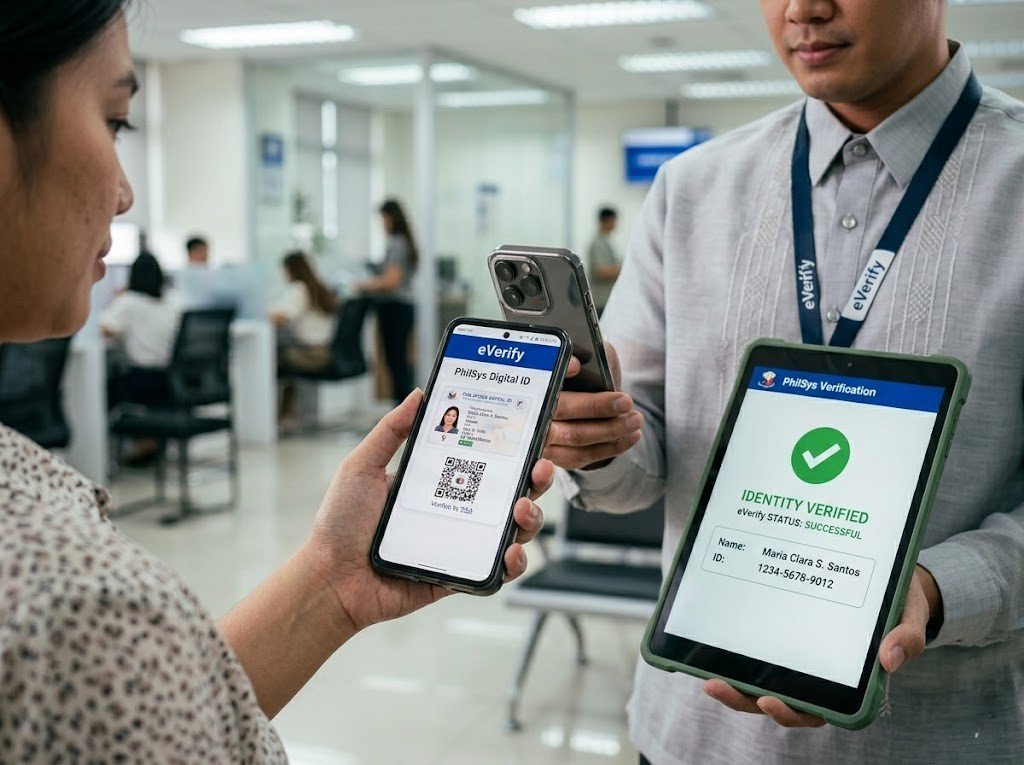
eVerify.gov.ph is the Philippine Statistics Authority’s (PSA) official online system for national id digital verification. It allows authorized institutions — banks, HR departments, government agencies, and registered businesses — to confirm whether a National ID presented to them is genuine and active in the PhilSys database.
Think of it as the government’s answer to the growing question: “How can I check my national ID online?” The portal cross-references every scan or manual entry directly against the PhilSys registry, making fraud nearly impossible to get away with.
How Can I Check My National ID Online? (For Individual Registrants)
If you are wondering how can i check my national id online as a personal registrant — not verifying someone else’s ID — here are your two best options:
Option 1: Check Status via the eGovPH App
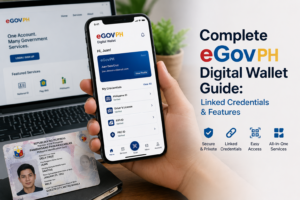
The eGovPH app is your all-in-one tool for egov ph national id verification and access to your digital ID:
- Download the eGovPH app from the Google Play Store (Android) or Apple App Store (iOS).
- Sign up using your mobile number and verify via OTP.
- Tap the National ID card on the dashboard.
- If your ID is ready, your national id digital copy will appear — with your full name, PSN, photo, and a scannable QR code.
- If it shows “Processing,” your record is not yet available. Check back in a few days.
Option 2: Check via the national-id.gov.ph Portal
Go to national-id.gov.ph, click “Proceed,” enter your full name and date of birth, and complete the liveness (face scan) check. If your record is active, your digital ID will load immediately. This is also the fastest way to download your authenticated PDF copy. For a full walkthrough, see our guide on how to download your National ID as a PDF.
Understanding the QR Code on Your National ID
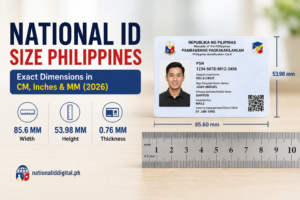
Every Philippine National ID — physical plastic card, printed ePhilID, and digital copy — features a QR code in the bottom-right corner. This is not decorative. It is a high-security authentication feature that makes the national id tracking qr code system possible.
What Does the QR Code Contain?
The QR code on your National ID stores an encrypted, PSA-digitally-signed version of your:
- Full name
- Date of birth
- Sex
- PhilSys Number (PSN)
- A cryptographic signature that prevents tampering
Because the data is encrypted and signed by the PSA, a counterfeit QR code will fail verification the moment it is scanned through any authorized reader — making this the most reliable way to scan national id authenticity on the spot.
How the National ID QR Code Scanner Online Works
Here is how the national id qr code scanner online process works in practice:
- The verifier (bank teller, HR officer, government clerk) opens the eVerify portal or an accredited scanning app on their device.
- They point the camera at the QR code on your physical card, printed ePhilID, or digital copy shown on your phone screen.
- The system decrypts the QR data and cross-checks it against the live PhilSys database.
- A Verified or Not Verified result appears within seconds.
Step-by-Step: How to Verify a National ID Using eVerify.gov.ph
If you are a business, HR professional, or government employee needing to verify a customer’s or applicant’s National ID, follow these steps exactly.
Step 1: Go to the eVerify Portal
Open any browser and navigate to everify.gov.ph — the official PSA eVerify portal. Always type the URL directly or use a saved bookmark. Avoid clicking links in emails or messages that claim to lead to eVerify, as phishing sites exist.
Step 2: Log In Using Your Institution’s Credentials
Click Log In and enter your institution’s approved national id registration login credentials. If your organization has not yet registered, click Register to begin the institutional accreditation process with the PSA. Individual Filipinos cannot create personal eVerify accounts — this portal is exclusively for institutions.
Step 3: Choose Your Verification Method
Once logged in, the eVerify dashboard will offer two methods to verify a National ID:
- QR Code Scan — Use your device camera to scan the QR code on the ID. Fastest and most accurate.
- Manual Entry — Type in the cardholder’s PhilSys Number (PSN) and date of birth. Useful when the QR code is damaged or unreadable.
Step 4: Scan the QR Code or Enter the PSN
Option A — QR Code Scan (Recommended)
- Click “Scan QR Code” on the eVerify dashboard.
- Allow camera access when prompted by your browser.
- Point the camera at the QR code on the cardholder’s physical plastic card, printed ePhilID, or digital copy shown on their phone screen.
- Hold steady for 1–2 seconds. The national id qr code scanner online will auto-detect and read the code.
- The system will immediately cross-check the decoded data against the PhilSys database.
Option B — Manual Entry
- Click “Manual Verification.”
- Enter the PhilSys Number (PSN) exactly as printed on the front of the card.
- Enter the cardholder’s Date of Birth.
- Click “Verify.”
Step 5: Read the Verification Result
The eVerify system will return one of two results:
- ✅ Verified — The National ID is authentic, active, and registered in the PhilSys database. You may proceed with the transaction.
- ❌ Not Verified — The ID could not be matched. This may indicate a counterfeit card, a data entry error, or a recently issued ID that has not fully synced yet. Do not immediately accuse the cardholder — advise them to visit a PSA office or call the hotline at 1388.
National ID Tracking: How to Monitor Your Application Status
Haven’t received your physical card yet and wondering about your national id tracking qr code status? While you cannot scan your QR code before your ID is issued, you can monitor your registration progress through these official channels:
- eGovPH App — Dashboard → National ID tab. Shows whether your digital ID is ready to access.
- PSA Hotline — Call 1388 during office hours for a live status update.
- national-id.gov.ph portal — Enter your name and date of birth to check if your record is active.
- PSA Email Inquiry — Send a formal inquiry to the PSA help desk with your TRN (Transaction Reference Number).
national id registration online: A Quick Overview
Before you can verify or access your National ID, you must have completed national id registration online. Here is the quick process if you or someone you know has not yet registered:
- Go to register.philsys.gov.ph to complete Step 1 — your demographic information (name, birthday, address, and contact details).
- Book a Step 2 appointment at the nearest PSA PhilSys registration center.
- Attend your appointment for biometric capture: photo, fingerprints, and iris scan.
- Receive your Transaction Reference Number (TRN) slip. Keep this safe — it is your proof of registration.
- Wait for PSA to process your record. Once ready, your national id digital copy will be available via the eGovPH app.
For a full walkthrough of the registration process, see our guide on how to register for a National ID online.
Troubleshooting: Common Verification Issues
“QR Code Not Scanning” on eVerify
Ensure the QR code on the card or screen is not dirty, scratched, or obscured. Try increasing the screen brightness if scanning a digital copy. Move to a well-lit area, and make sure your camera lens is clean. If the QR code is physically damaged, use the Manual Entry method instead (PSN + date of birth).
“Not Verified” Result Despite a Valid Card
First, double-check the PSN and date of birth for any typos. If the details are correct, the ID may have been recently issued and is still syncing to the PSA database. Advise the cardholder to wait 24–48 hours and try again, or to call PSA at 1388 for immediate assistance.
“eVerify Login Not Working”
Check your internet connection and try a different browser. Clear your browser’s cache and cookies. If your institutional national id registration login credentials are not working, contact the PSA eVerify helpdesk — your account may require re-verification or your accreditation may have lapsed.
“My National ID QR Code Shows an Error When Scanned”
A QR code error on your own digital ID usually means the ID file has been compressed or screenshot multiple times, degrading the QR resolution. Always share your national id digital copy directly from the eGovPH app or the authenticated PDF from national-id.gov.ph — never from a photo or screenshot of a screenshot.
Frequently Asked Questions (FAQs)
Can I scan my own national ID QR code to verify it?
Yes — you can use your phone’s built-in camera or any standard QR reader to scan the QR code on your national id digital copy. This will decode the raw encrypted data stored in the code. However, a full eVerify-level database cross-check requires an authorized institutional eVerify account. Scanning it yourself is a useful quick check to confirm the QR is intact and not tampered with.
Is the national id digital copy legally accepted?
Yes, absolutely. Under Republic Act 11055 (the Philippine Identification System Act), the digital National ID — including the PDF from national-id.gov.ph and the version in the eGovPH app — carries the same legal weight as the physical plastic card. All government agencies, banks, e-wallets, and private institutions are required to accept it as a primary government ID.
How can I check my national ID online as an individual?
Download the eGovPH app and log in with your registered mobile number. Tap the National ID section on the dashboard to see your registration status and access your national id digital copy if it is ready. You can also go to national-id.gov.ph and enter your name and birthdate to check your record directly.
Is using the national id qr code scanner online free?
Scanning and viewing your own QR code is completely free. The eGovPH app is also free to download and use for individuals. Institutional access to the eVerify portal may involve PSA accreditation fees for businesses and large organizations — contact PSA directly for pricing details.
What is the difference between eVerify.gov.ph and the eGovPH app for national id verification?
eVerify.gov.ph is a B2B/institutional tool — it allows banks, employers, and government agencies to verify a customer’s National ID. The eGovPH app is for individual Filipinos — it lets you access your own national id digital copy, show your QR code for scanning, and download a PDF of your ID. Both are part of the official egov ph national id verification ecosystem.
What if someone presents a fake national ID?
If the eVerify system returns a “Not Verified” result, do not confront the individual aggressively. Note the discrepancy and advise them to contact PSA at 1388 to resolve the issue. If you have strong reason to believe the ID is fraudulent, you may report it to the PSA Anti-Fraud unit or your local authorities. Never make binding fraud accusations based solely on a verification result without ruling out technical errors first.
How do I complete national id registration online if I haven’t registered yet?
Go to register.philsys.gov.ph to complete your online pre-registration (Step 1). You will then need to book and attend an in-person Step 2 appointment at a PSA registration center for biometric capture. Once your biometrics are processed, your national id digital copy will become available through the eGovPH app.
Now that you know how to verify your National ID, make the most of it — read our guide on how to use your National ID for GCash verification and unlock full wallet limits in minutes.