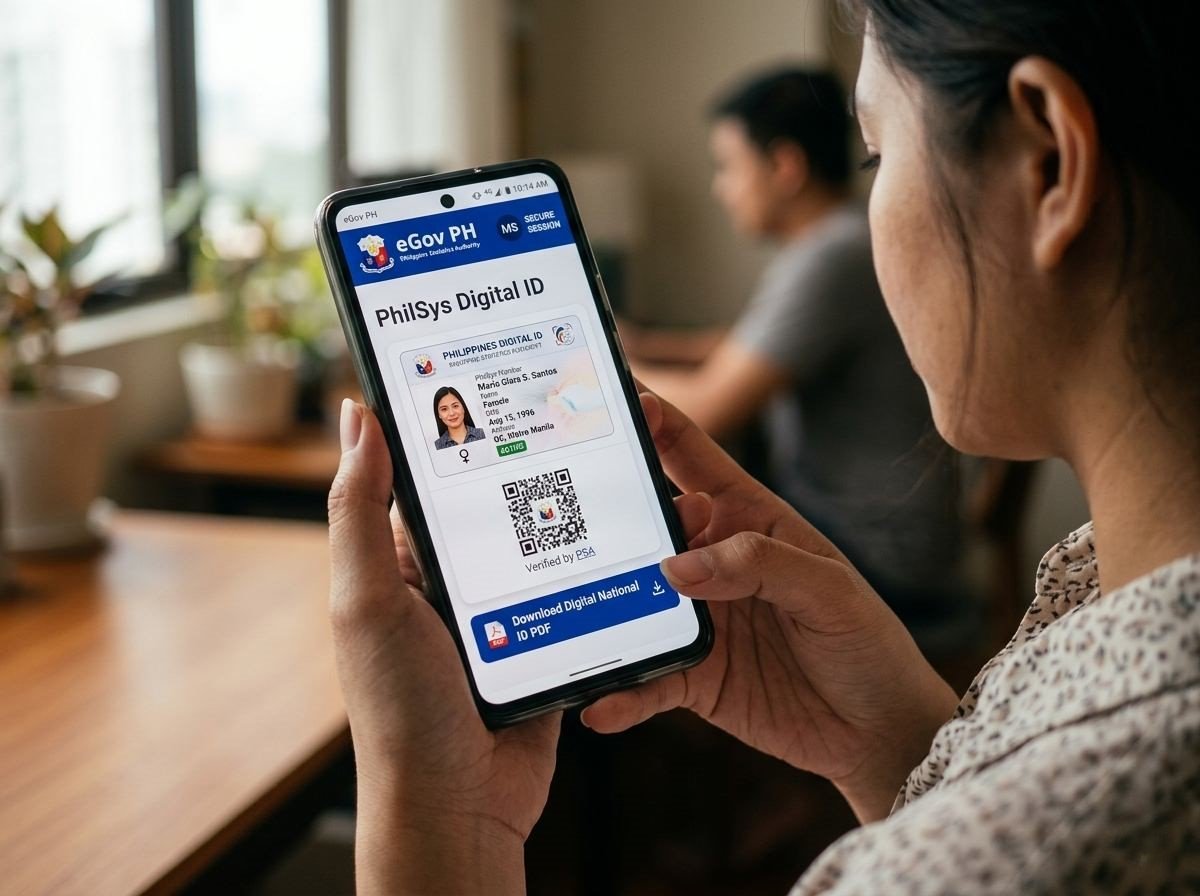
- Method 1: Download National ID PDF via national-id.gov.ph (Web Portal)
- Method 2: Download National ID PDF via the eGovPH App
- Alternative Method: Download via QR Code Scan
- national id registration online: Is It Required Before Downloading?
- How to Print Your National ID PDF (ePhilID)
- Troubleshooting: Can't Download Your National ID PDF?
- Frequently Asked Questions (FAQs)
You can now download your Digital National ID as a PDF in minutes — no need to wait for the physical plastic card. Whether you use the official national-id.gov.ph portal or the eGovPH national ID app, this guide walks you through every step so you can save, print, and use your authenticated PDF immediately.
The national id digital copy download pdf is legally valid for all public and private transactions in the Philippines — from opening a bank account to verifying your identity on GCash, Maya, and government platforms. Here is exactly how to get yours right now.

How to download your National ID digital copy as PDF from the eGovPH app or national-id.gov.ph portal
Method 1: Download National ID PDF via national-id.gov.ph (Web Portal)
The national id gov ph open now portal is the quickest way to get a PDF of your philsys national id without installing any app. All you need is a smartphone or computer with a camera and an internet browser. Here is the complete process:
Step 1: Open the Official Portal
Open any browser on your phone or computer and go to national-id.gov.ph. This is the official PSA portal for accessing your PhilSys national ID digitally. Make sure you are on the correct URL — avoid third-party sites that mimic the official portal.
Step 2: Click “Proceed” to Give Consent
The portal will display a data privacy consent notice from the Philippine Statistics Authority (PSA). Read through it, then click the “Proceed” button to consent to the PSA processing your personal data for identity verification. This is a required step before you can access your digital national id.
Step 3: Enter Your Full Name and Date of Birth
You will be asked to enter your Full Name (exactly as it appears on your PhilSys registration) and your Date of Birth. Double-check for spelling — even a minor discrepancy in your name may prevent the system from finding your record. This step answers the common question: “how can I check my national ID online?” — entering these details pulls your record directly from the PhilSys database.
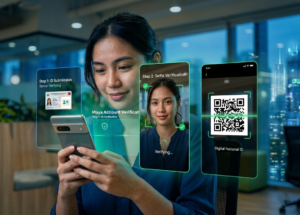
Step 4: Complete the Liveness Check (Facial Authentication)
Click “Start Liveness” to begin the facial authentication process. Your device’s camera will activate. Follow the on-screen prompts carefully:
- Center your face within the on-screen oval frame.
- Ensure you are in a well-lit area with a plain background.
- Remove glasses or face coverings if prompted.
- Follow any movement instructions (e.g., blink slowly, turn slightly left or right).
This liveness check verifies that you are the actual registered owner of the eGovPH national ID — not someone presenting a photo or video of you. It typically completes within 10–30 seconds.
Step 5: View Your National ID
After successful facial authentication, the portal will display the “View National ID” button. Click it to load your official philsys national id on screen, complete with your photo, full name, date of birth, address, PCN (PhilSys Card Number), and the verifiable QR code.
Step 6: Download as PDF
Click the “Download Digital ID” button. Your browser will automatically save a PDF copy of your national id digital copy to your device. This PDF is your official ePhilID — it is authenticated, government-issued, and valid for all transactions. Save it to a clearly labeled folder (e.g., “My IDs”) and consider emailing it to yourself as a backup.
Method 2: Download National ID PDF via the eGovPH App
The eGovPH national id app method is ideal if you want permanent, offline access to your digital ID without needing to go through the web portal’s liveness check every time. Once linked, your digital national id is stored securely in the app and accessible anytime.
Step 1: Install the eGovPH App
Download the official eGovPH app from the Google Play Store (Android) or the Apple App Store (iOS). Only install from these official sources. The app is published by the Department of Information and Communications Technology (DICT).
Step 2: Register and Log In
Open the app and tap Sign Up. Enter your mobile number, verify via OTP, and set a 6-digit MPIN. If you already have an account, simply log in. This is your gateway to your eGovPH national id and all other government digital services on the platform. For a detailed walkthrough of this step, see our full guide on how to download your National ID via the eGovPH app.
Step 3: Link Your PhilSys Record and Complete the Face Scan
Navigate to the PhilSys section or National ID card on the home dashboard. Tap “Link National ID” and verify via OTP. Complete the one-time liveness check (face scan). Once verified, your national id copy will appear permanently on your app dashboard.
Step 4: Access and Download the PDF
Tap on your Digital National ID card in the app. Look for the Share / Download icon (usually a downward arrow or share symbol in the top corner of the ID view). Select Download as PDF or Save to Files. The national id digital copy download pdf will be saved directly to your phone’s storage or files app. You can then share it, print it, or upload it as needed.
Alternative Method: Download via QR Code Scan
If you already have a physical plastic card or a printed ePhilID paper copy, there is a third option. You can use the QR code printed on your physical ID to access and re-download your digital national id:
- Open the national-id.gov.ph portal or the PhilSys verification page at ephilid.philsys.gov.ph.
- Select the option to verify via QR code.
- Scan the QR code on your physical or printed National ID using your device’s camera.
- Complete the facial authentication (liveness check).
- Download the authenticated PDF copy of your ID.
This is especially useful if you have lost access to your registered mobile number and cannot complete the standard portal login. Note that the ephilid philsys gov ph download system also uses this QR-based verification flow for document access.
national id registration online: Is It Required Before Downloading?
Yes — before you can download any form of your digital National ID, you must have completed your national id registration online (Step 1 demographic registration) and your in-person biometric capture (Step 2). If you have not yet registered, here is what you need to do first:
- Go to register.philsys.gov.ph to complete national id registration online Step 1 (your demographic information).
- Book an in-person appointment at a PhilSys registration center near you.
- Attend your appointment for photo, fingerprint, and iris scan capture.
- Receive your Transaction Reference Number (TRN) slip — keep this safe.
- Wait for your record to be processed by the PSA. You can check your national ID online at any time using the PSA portal.
- Once your record is ready, use either method above to download your PDF.
How to Print Your National ID PDF (ePhilID)
Once you have your national id digital copy download pdf, printing it is straightforward:
- Transfer the PDF to a computer (via email, USB, or cloud storage).
- Open the PDF in Adobe Acrobat Reader or any PDF viewer.
- Print on A4 paper using a color printer for the clearest result.
- Do not laminate with thick plastic — this can obscure the QR code and make it unreadable by scanners.
- A thin protective sleeve is acceptable if needed.
This printed output is the official ePhilID — the paper-based version of your PhilSys ID. It is accepted at all the same places as the plastic card, including banks, government offices, and private institutions.
Troubleshooting: Can’t Download Your National ID PDF?
“Your record was not found.”
This means the details you entered do not match the PhilSys database, or your registration is still being processed. Double-check your name spelling and date of birth format. If you recently completed registration, your record may not be fully activated yet — wait a few more days and try again. You can also visit the national id gov ph open now portal at a different time, as the system can be slow during peak hours.
“Liveness check failed.”
Move to a brighter area, remove glasses, and ensure your entire face (forehead to chin) is visible within the frame. Avoid sitting with a bright window behind you, as backlighting causes the camera to underexpose your face. Try using the front camera of your phone rather than a laptop webcam for better results.
“The national id gov ph portal is not loading.”
Try a different browser (Chrome, Firefox, or Safari). Clear your browser cache and cookies, or switch from Wi-Fi to mobile data. The portal can experience downtime during high-traffic periods — try again after a few hours. Alternatively, use the eGovPH app method as a backup.
“No PDF option in the eGovPH app.”
Update your eGovPH app to the latest version from the Play Store or App Store. Some older versions do not include the PDF download feature. If the feature is still missing after updating, use the screenshot method (front and back of the ID) or download via the national-id.gov.ph web portal instead.
“How can I get my National ID online if I am an OFW?”
For OFWs (Overseas Filipino Workers), the PhilSys registration process is available at select Philippine embassies and consulates abroad. Once your biometrics have been captured and your record is processed, you can access and download your philsys national id PDF from anywhere in the world using the national-id.gov.ph portal or the eGovPH app — no need to return to the Philippines just to get your digital ID.
Frequently Asked Questions (FAQs)
How to download and save your National ID to PDF?
Go to national-id.gov.ph, click “Proceed,” enter your full name and date of birth, complete the liveness (face scan) check, click “View National ID,” then click “Download Digital ID” to save the PDF. Alternatively, use the eGovPH app: link your PhilSys record, view your national id copy, and tap the Share/Download icon to save the PDF to your device.
How do I get my Philippine National ID online?
If you are already registered with PhilSys, access your digital national id online by going to national-id.gov.ph and completing the facial authentication, or by linking your PhilSys account to the eGovPH app. If you have not yet registered, you must first complete national id registration online at register.philsys.gov.ph and attend an in-person biometric capture appointment.
How do I download my plastic National ID card?
You cannot “download” the physical plastic card — it is produced and delivered by the PSA to your registered address. However, you can download a national id digital copy download pdf (the ePhilID) which is legally equivalent and can be printed or used digitally. The PDF is available at national-id.gov.ph and via the eGovPH app.
How to get a National ID Philippines for OFW?
OFWs can register for the PhilSys National ID at Philippine Overseas Labor Offices (POLOs) or select Philippine embassies and consulates. Once registered, the digital national id and its PDF can be downloaded from national-id.gov.ph or the eGovPH app from any country, making it accessible even without returning to the Philippines.
How can I check my national ID online?
You can check your national id registration and delivery status at the official PSA PhilSys portal (nationalid.gov.ph). Enter your TRN (Transaction Reference Number) or registered mobile number to see whether your card is being processed, printed, or delivered. Once your status shows as active, you can proceed to download your digital ID.
What is ephilid philsys gov ph download?
The ephilid philsys gov ph download refers to the official PhilSys electronic ID download system. The ePhilID is the authenticated PDF version of your PhilSys National ID, downloadable at national-id.gov.ph after completing facial verification. It is the official term for the paper-based or digital version of your National ID issued by the PSA.
Is the downloaded PDF National ID valid?
Yes. The national id digital copy download pdf (ePhilID) is a fully valid government-issued identity document. Under Republic Act 11055, all public and private entities in the Philippines are required to accept it as a primary proof of identity — banks, government agencies, e-wallets, schools, and private companies included.
What is the difference between the eGovPH national ID and the national-id.gov.ph portal?
The eGovPH national id app stores your digital ID permanently on your smartphone after a one-time verification, allowing repeated offline access. The national-id.gov.ph portal is a web-based option that requires facial authentication each time you access it, but generates a fresh, authenticated PDF download on demand — useful if you want a new copy or are using a device without the app installed.
Now that you have your PDF, put it to use right away — read our guide on how to use your National ID for GCash verification and unlock your full wallet limits in minutes.