- The Two Official Verification Systems — and Which One You Need
- How to Verify a National ID Using the QR Code — Step by Step
- What the QR Code Actually Contains — and Why It Cannot Be Faked
- How to Verify a Digital National ID (ePhilID)
- What to Do When National ID Verification Fails — "Not Verified" Explained
- For Institutions: How to Set Up National ID eVerify Access
- Can You Verify a National ID by Name?
- Where Your Verified National ID Is Accepted
- How We Verified This Information
- Frequently Asked Questions — National ID Verification
- Related Guides
Whether you are a Filipino holding a National ID and wondering if it is genuine, or a bank officer, employer, or government clerk who needs to confirm one in seconds — this guide covers every official method for Philippine National ID verification in 2026.
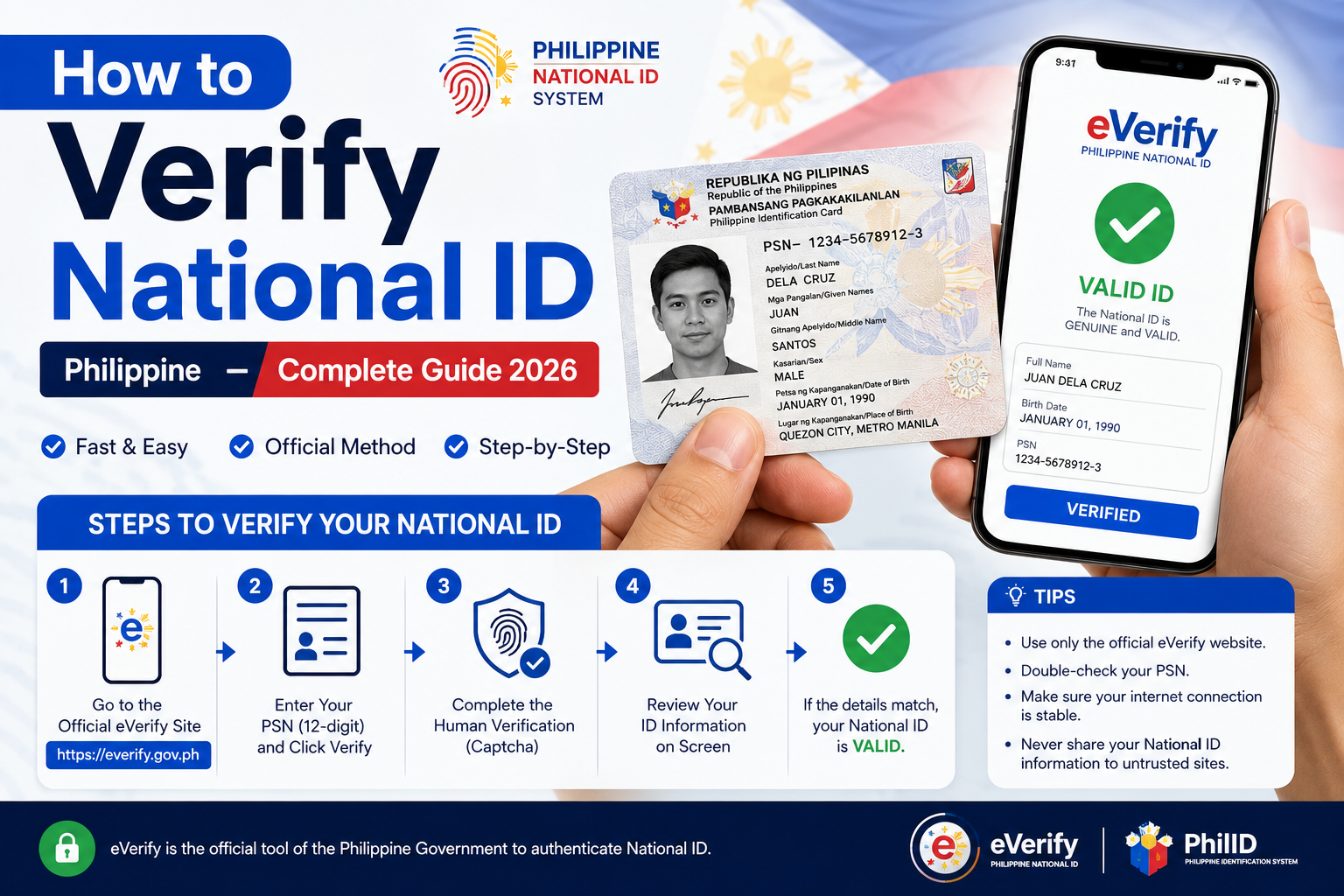
There are three ways to verify a PhilSys National ID, and the right one depends on who is doing the checking and why:
- Cardholders verifying their own ID — use the PhilSys Check tool at
everify.gov.ph/checkor the eGovPH app. - Institutions (banks, employers, government offices) — use the National ID eVerify portal at
everify.gov.phwith an approved institutional account. - Quick on-the-spot checks — scan the QR code on any physical card or printed ePhilID using a smartphone camera and the Check tool. No account needed.
The sections below go deeper: what the verification system actually checks, how to read every possible result, what “Not Verified” really means (it’s not always fraud), how to verify a digital ePhilID, and what to do when verification fails. There’s also a dedicated section for institutions that need to set up institutional eVerify access.
The Two Official Verification Systems — and Which One You Need
The PSA and DICT jointly operate two distinct platforms under the National ID Authentication Services (NIDAS) framework. Understanding the difference prevents confusion and wasted time.
PhilSys Check — for Everyone, No Account Needed
URL: everify.gov.ph/check
PhilSys Check is a free, public-facing QR code scanner. Any person with a smartphone — cardholder, bank teller, barangay officer, HR staff, or curious individual — can scan the QR code on a National ID and receive an instant Verified or Not Verified result. It requires no institutional login, no registration, and no fee. It works on any modern smartphone browser.
This is the tool to use for the vast majority of day-to-day verification needs.
National ID eVerify — for Institutions Only
URL: everify.gov.ph
The full eVerify platform is designed for government agencies, banks, employers, and accredited private institutions that need to verify IDs at scale or integrate verification into their own systems. It offers deeper identity matching — including PSN + date of birth cross-referencing — and provides an audit trail for compliance purposes. Institutional access requires registration and approval from the PSA.
Individual cardholders do not need an eVerify account. Use PhilSys Check instead.
How to Verify a National ID Using the QR Code — Step by Step
This method works for physical PhilID cards, printed ePhilID copies, and the digital ePhilID displayed on a smartphone screen. It is the fastest and most reliable method for on-the-spot verification.
Step 1 — Open PhilSys Check
On any smartphone or computer, go to everify.gov.ph/check. This is the official, free public verification tool operated by the PSA and DICT. You do not need to create an account or log in.
If you are verifying a digital ePhilID being shown on someone’s phone screen, hold your own phone’s camera at the correct angle — the QR code displayed on a phone screen scans just as reliably as the one printed on a physical card, provided the screen brightness is adequate.
Step 2 — Allow Camera Access
The tool will request camera access in your browser. Tap Allow. If you accidentally denied access, go to your browser’s site permissions settings, find everify.gov.ph/check, and set Camera to Allow, then reload the page.
Step 3 — Scan the QR Code
Point your camera at the QR code in the bottom-right corner of the National ID — whether on a physical card, a printed ePhilID, or a phone screen showing the digital ID.
For best results:
- Hold the camera 10–20 cm from the QR code
- Ensure the entire QR code (all four corners) is visible within the camera frame
- Use good ambient lighting — avoid scanning in direct sunlight or in very dim conditions
- Keep the card or phone still while scanning
Step 4 — Read the Result
The result appears within 2–3 seconds. There are exactly two possible results:
Step 5 — For Institutional Verification: Cross-Check the PSN
If you have institutional eVerify access and want a deeper check beyond the QR scan, the eVerify portal also allows verification by entering the cardholder’s PhilSys Number (PSN) and date of birth manually. This is useful when a QR code is damaged or unreadable and you still need to verify the card.
Individual members of the public cannot verify by PSN through the public Check tool — only the QR method is available without an institutional account.
What the QR Code Actually Contains — and Why It Cannot Be Faked
Understanding what is inside the QR code explains why it is the most reliable identity verification method available in the Philippines today — and why a failed scan is almost always a technical issue, not fraud.
The QR code on every Philippine National ID does not store your full personal data. Instead, it contains a PSA-digitally-signed encrypted token that links to your record in the PhilSys central registry. When scanned through PhilSys Check or eVerify, the system:
- Reads the encrypted token from the QR code
- Sends it to the PhilSys registry over a secure connection
- The registry decrypts the token using the PSA’s private key
- The registry returns a Verified or Not Verified result based on whether the token matches an active record
Because the token is signed with the PSA’s private cryptographic key — a key that only the PSA holds — a counterfeit card cannot generate a valid token. Any attempt to alter the QR code, print a fake card, or copy a QR code from a legitimate card will produce a token that the registry rejects immediately. This makes the PhilSys QR code significantly more tamper-resistant than the security features on most traditional government-issued IDs.
What the QR code does not contain: your full PhilSys Number (PSN), your biometric data (fingerprints or iris scan), your complete address, or any information that could be used to steal your identity if the QR is scanned without your consent. The token alone is meaningless without the PSA’s verification server — it cannot be decoded by any standard QR reader or third-party app.
How to Verify a Digital National ID (ePhilID)
The ePhilID — available through the eGovPH app at national-id.gov.ph — carries the same QR code as the physical card and is verified through exactly the same process.
Verifying an ePhilID Shown on a Smartphone Screen
When someone shows you their ePhilID on their phone, or when you want to verify your own digital ID:
- Open everify.gov.ph/check on a second device (or ask the cardholder to use their phone for self-verification)
- Point the camera at the QR code displayed on the ePhilID screen
- Ensure the screen brightness is at maximum — low brightness causes failed scans on digital IDs
- Avoid scanning at sharp angles; hold the scanning device parallel to the display screen
Verifying a Printed ePhilID
A printed ePhilID (the A4 or letter-size printout generated from the eGovPH app) is verified identically to the physical card — scan the QR code in the bottom section of the printout. Ensure the print is clear and unsmudged. Do not laminate with thick plastic, as this can cause light diffraction that interferes with QR scanning.
Is the ePhilID Legally Equal to the Physical Card?
Yes, unconditionally. Under Republic Act 11055 and its Implementing Rules and Regulations (IRR), the ePhilID — whether shown on a device or printed on paper — carries the same legal weight as the physical plastic PhilID card. No institution, government or private, may lawfully reject it. If an establishment refuses your ePhilID, cite Section 9 of RA 11055 and request a supervisor. For persistent refusals, the PSA accepts complaints via their hotline at 1388.
What to Do When National ID Verification Fails — “Not Verified” Explained
A “Not Verified” or “QR Code Could Not Be Read” result is alarming, but in the vast majority of cases it reflects a technical issue, not a fraudulent card. Here are the most common causes and how to resolve each one before drawing conclusions.
Cause 1 — The Card Is New and Not Yet Synced
Who this affects: Cardholders who received their physical card or ePhilID within the past 2–4 weeks.
After the PSA prints a card or activates an ePhilID record, there is a database propagation window before the record becomes fully retrievable by the verification servers. Cards in this window will return “Not Verified” even though they are completely genuine.
Fix: Wait 2–4 weeks from card receipt and try again. In the meantime, use your transaction slip as supplementary proof if a bank or institution needs to proceed.
Cause 2 — Poor Scan Conditions
The most frequent technical cause. The QR scanner requires a clean, stable, well-lit image of the full QR code.
Common scan problems and fixes:
- Partial QR code in frame — move the camera back until all four corners are visible
- Blurry image — hold the card and phone still; tap the screen to force focus
- Glare on physical card — tilt the card slightly or move to indirect lighting
- Low screen brightness (digital ID) — set to maximum brightness before scanning
- Dirty or scratched QR area — gently clean the card surface with a soft dry cloth
- Scanning at an angle — align the camera parallel to the card surface
Cause 3 — Unstable Internet Connection
PhilSys Check requires an active internet connection to query the PSA registry. A slow or intermittent connection can cause the verification request to time out, returning an error rather than a clean Verified result.
Fix: Switch from Wi-Fi to mobile data or vice versa, then retry. Avoid verifying in basements or areas with weak signal.
Cause 4 — Physically Damaged QR Code
A QR code that has been scratched, bent, wet, or worn beyond a certain threshold cannot be decoded. This is a physical card defect, not fraud.
Fix: If you are an institution, request the cardholder to provide their PSN verbally and use eVerify’s PSN + date-of-birth lookup as a fallback (requires institutional access). If you are the cardholder, visit a PSA office to request a card replacement due to physical damage. While waiting for the replacement, your ePhilID from the eGovPH app remains fully valid.
Cause 5 — Third-Party Scanner Apps
Standard QR scanner apps (phone camera, Google Lens, third-party barcode readers) will show an unreadable encrypted string when pointed at a PhilSys QR code — this is by design. The QR is readable only through the official PSA verification system at everify.gov.ph/check.
Fix: Always use everify.gov.ph/check — never a third-party scanner.
When to Be Concerned About a Potentially Fake Card
A “Not Verified” result combined with any of the following physical signs warrants further scrutiny:
- The card feels noticeably lighter or thinner than a standard PhilID
- The PSA holographic seal is missing or clearly printed rather than embossed
- The cardholder’s photo appears digitally altered or inconsistent with their appearance
- The card number format does not match the standard PhilSys PSN format
- Verification still fails after multiple attempts under good conditions
In these cases, decline the transaction, do not accuse the cardholder directly (the card may be a legitimate new issue with a sync delay), and advise them to visit a PSA office with their transaction slip to have the card confirmed. If fraud is suspected in a professional context, follow your institution’s standard suspicious document protocol.
For Institutions: How to Set Up National ID eVerify Access
Banks, government offices, HR departments, telecoms, and other institutions that need to verify National IDs at scale — or integrate verification into their own systems — can register for institutional access to the full National ID eVerify platform.
What Institutional eVerify Offers Beyond PhilSys Check
- PSN + date-of-birth verification — cross-reference identity without requiring the physical card or QR code
- Bulk verification — verify multiple IDs in a single session
- API integration — connect the verification service into your own onboarding or KYC system
- Audit trail — complete logs of verification transactions for compliance and regulatory purposes
- Facial recognition matching — advanced biometric confirmation available to accredited institutions
How to Apply for Institutional eVerify Access
- Go to everify.gov.ph and click “Register as Institution” or “Apply for Access”
- Complete the institutional registration form with your organization name, type (government/private), contact details, and intended use
- Submit the required documents (varies by institution type — typically includes SEC registration or government mandate letter, and a data privacy officer declaration)
- The PSA reviews applications. Government agencies receive priority processing. Private sector applications are subject to PSA approval and a data-sharing agreement
- Upon approval, you receive institutional login credentials and access to the full eVerify dashboard
For queries about institutional access, contact the PSA at 1388 or through the eVerify portal’s contact form.
Can You Verify a National ID by Name?
This question comes up frequently — and the answer is no, by design.
The PhilSys verification system does not allow any member of the public to search for a National ID record using someone’s name. This is not a technical limitation — it is a deliberate privacy protection mandated by the Data Privacy Act of 2012 (Republic Act 10173). Allowing name-based lookups would enable identity tracking and surveillance of individual Filipinos without their consent, which the law explicitly prohibits.
The only member-of-the-public verification method available is the QR code scan — which requires the physical card, printed ePhilID, or digital ID to be physically present. Verification cannot happen without the cardholder’s knowledge and participation.
For institutional users with eVerify access, PSN + date-of-birth cross-referencing is available — but this still requires the cardholder to disclose their PSN, which is printed on their card. It is not a remote lookup tool.
If you are trying to verify whether a specific person holds a National ID for legitimate professional reasons (background checks, employment screening), the correct process is to ask the person to present their PhilID or ePhilID directly and verify it using PhilSys Check in their presence.
Where Your Verified National ID Is Accepted
Once verified, your PhilID or ePhilID is legally accepted across the full range of Philippine government and private sector transactions under RA 11055. Here is a practical breakdown by category.
Government Services
All national government agencies (NGAs), local government units (LGUs), and government-owned and controlled corporations (GOCCs) are mandated to accept the PhilID. This includes SSS, GSIS, PhilHealth, and Pag-IBIG for benefit claims and loan applications; the DFA for passport applications; the LTO for driver’s license transactions; and the BIR for tax registration and filing. Barangay offices, city halls, and municipal halls also accept it for clearances, permits, and certificates.
Banking and Financial Services
All BSP-regulated banks are required by law to accept the PhilID as sufficient proof of identity. For account opening, loan applications, and KYC compliance, the PhilID — physical or digital — satisfies the identity requirement on its own. For e-wallet verification specifically, see our guides on GCash National ID verification and National ID for banking KYC.
Employment and HR
Employers conducting pre-employment background checks, payroll setup, or onboarding documentation may use the PhilID as primary identity documentation. HR staff can verify authenticity instantly using PhilSys Check without requiring institutional eVerify access.
Telecommunications
Globe, Smart, and DITO accept the PhilID for SIM registration (required under the SIM Registration Act) and for postpaid plan applications and contract upgrades.
Travel
The physical PhilID is accepted as a valid boarding document for domestic flights at NAIA and regional airports. The digital ePhilID shown on a phone screen is also accepted by most carriers — confirm with your airline at check-in if unsure.
Private Sector
Hospitals, clinics, schools, universities, and most retailers accept the PhilID for identity verification. For senior citizen and PWD discount claims, the PhilID satisfies the identity component — the SC or PWD card must still be presented separately for the discount itself.
How We Verified This Information
Every process described in this guide was cross-checked against official PSA and DICT documentation, including the PSA’s official eVerify launch announcement, the Implementing Rules and Regulations of RA 11055, and the live everify.gov.ph and national-id.gov.ph portals as of June 2026.
Our team includes Filipinos who have personally used eVerify for National ID verification at banking and government transactions. Where PSA policy is subject to change, we note the most recent confirmed process and update this page when official sources change.
Last reviewed: June 2026 · Sources: PSA, DICT, RA 11055 IRR, everify.gov.ph · Not affiliated with PSA or PhilSys.
Frequently Asked Questions — National ID Verification
How do I verify my Philippine National ID is genuine?
Go to everify.gov.ph/check on any smartphone, allow camera access, and scan the QR code in the bottom-right corner of your National ID card or ePhilID. A “Verified” result confirms the card is authentic and registered in the PhilSys database. The process takes 2–3 seconds and is completely free with no login required.
Can I verify a National ID by name only?
No — and this is intentional. The Data Privacy Act of 2012 (RA 10173) prohibits any system that allows ID records to be searched by name alone, as this would enable surveillance and identity tracking without the cardholder’s consent. The only public verification method requires the physical card, printed ePhilID, or digital ePhilID to be physically present for QR scanning. Institutional users with eVerify access can cross-reference a PSN + date of birth, but this still requires the cardholder to disclose their own PSN — it is not a remote lookup.
What does “Not Verified” mean on the PhilSys Check tool?
“Not Verified” does not automatically mean the card is fake. The most common causes are: a newly issued card that has not yet synced to the verification database (this takes up to 4 weeks), poor scan conditions (bad lighting, partial QR in frame, blurry image), an unstable internet connection, or a physically damaged QR code. Try again under better conditions first. If verification consistently fails despite good conditions on a card that is not newly issued, follow the steps in the “What to Do When Verification Fails” section above.
Can I verify a digital National ID (ePhilID) on a phone screen?
Yes. Open everify.gov.ph/check on a second device, then point its camera at the QR code displayed on the ePhilID screen. Set the ePhilID screen to maximum brightness before scanning, and hold both phones parallel to each other to avoid angle distortion. The digital ePhilID uses the same QR code as the physical card and is verified through the same process.
What is the difference between PhilSys Check and National ID eVerify?
PhilSys Check (everify.gov.ph/check) is a free, public QR scanner that anyone can use with no account — ideal for transaction-level verification at bank counters, HR desks, and government windows. National ID eVerify (everify.gov.ph) is a full institutional platform for organizations that need to verify IDs at scale, integrate verification into their own systems via API, or maintain compliance audit trails. Individual cardholders and most front-line staff need only PhilSys Check.
Can a bank refuse my National ID even if it verifies as genuine?
No. Republic Act 11055, Section 9 explicitly mandates all government agencies and private establishments to accept the PhilSys ID as a sufficient proof of identity. A bank that refuses a verified National ID is acting in violation of Philippine law. Ask to speak with the branch manager, cite RA 11055, and if the refusal persists, file a complaint with the Bangko Sentral ng Pilipinas (bsp.gov.ph) and the PSA hotline at 1388.
Is there a PhilSys QR code scanner app I need to download?
No separate app download is needed. PhilSys Check (everify.gov.ph/check) works entirely in your smartphone’s web browser — open it in Chrome or Safari, allow camera access, and scan. Standard QR scanner apps (your phone’s camera app, Google Lens, third-party barcode readers) will not work for PhilSys verification — they will show an unreadable encrypted string. Always use everify.gov.ph/check.
Can the QR code on a National ID be copied or faked?
No. The QR code contains a PSA-digitally-signed encrypted token. The encryption uses a private cryptographic key held only by the PSA. Any attempt to copy the QR code, alter its contents, or print it onto a counterfeit card produces a token that fails the PSA’s signature verification immediately. This makes the PhilSys QR code more tamper-resistant than visual security features like holograms, which can be replicated with high-quality printing.
My card shows “Verified” but my information looks wrong — what do I do?
A “Verified” result confirms the card is registered in PhilSys, but it does not confirm whether the personal details on the card surface are accurate. If you have incorrect information on your card (wrong name, birthday, or address), visit a PSA registration center to file a correction request. See our National ID Correction Guide for the step-by-step process and documents required.
Does my National ID expire? Will verification still work after expiration?
The PhilSys Number (PSN) is permanent and does not expire. The physical card has a printed validity date, but under RA 11055 guidelines, PSA continues to update cards periodically. Even after the printed date, verification through PhilSys Check typically still returns “Verified” as long as the record remains active in the database. For transactions requiring a current-dated card, contact the PSA to request a card renewal.
Related Guides
- How to Download Your Digital National ID (ePhilID) — eGovPH App Guide
- Is the Digital National ID Legally Valid? — Where It’s Accepted in 2026
- Use Your National ID to Verify GCash — Step-by-Step 2026
- National ID for Banking KYC — Which Banks Accept It?
- National ID Correction Guide — Fix Wrong Information on Your PhilID
- Track Your National ID Card Delivery — PHLPost + PSA Guide